
User`s guide
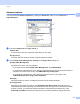
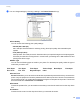

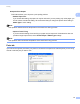




Table Of Contents
- SOFTWARE USER'S GUIDE
- Trademarks
- Table of Contents
- Windows®
- 1 Printing
- Using the Brother printer driver
- Printing a document
- Duplex printing
- Simultaneous scanning, printing and faxing
- Printer operation keys
- Status Monitor
- Printer driver settings
- Features in the Windows® printer driver
- Basic tab
- Advanced tab
- Tray Settings tab
- Support
- Features in the BR-Script (PostScript® 3™ language emulation) printer driver
- 2 Scanning
- Scanning a document using the TWAIN driver
- Scanning a document using the WIA driver (Windows® XP/Windows Vista®/Windows® 7)
- Scanning a document using the WIA driver (Windows Photo Gallery and Windows Fax and Scan)
- Using ScanSoft™ PaperPort™ 11SE with OCR by NUANCE™
- 3 ControlCenter3
- 4 Remote Setup
- 5 Brother PC-FAX Software
- 6 Firewall settings (For Network users)
- 1 Printing
- Apple Macintosh
- 7 Printing and Faxing
- 8 Scanning
- 9 ControlCenter2
- 10 Remote Setup
- Using The Scan key
- Index

Scanning
40
2
e Load your document again.
Note
Skip this step if you loaded the document on the scanner glass in step a.
f Click Start.
This time only the chosen area of the document appears in the PaperPort™ 11SE window (or your
application window).
g In the PaperPort™ 11SE window, use the options available to refine the image.
Settings in the Scanner Setup dialog box 2
Image Type 2
Choose the output image type from Photo, Web or Text. Resolution and Scan Type will be altered for each
default setting.
The default settings are listed in the table below:
Resolution 2
You can choose a scanning resolution from the Resolution drop-down list. Higher resolutions take more
memory and transfer time, but produce a finer scanned image. The following table shows the resolutions you
can choose and the available colors.
Image Type Resolution Scan Type
Photo Use for scanning photo images. 300 x 300 dpi 24bit Color
Web Use for attaching the scanned image to web pages. 100 x 100 dpi 24bit Color
Text Use for scanning text documents. 200 x 200 dpi Black & White
Resolution Black & White/
Gray (Error Diffusion)
256 Color True Gray/24bit Color
100 x 100 dpi Yes Yes Yes
150 x 150 dpi Yes Yes Yes
200 x 200 dpi Yes Yes Yes
300 x 300 dpi Yes Yes Yes
400 x 400 dpi Yes Yes Yes
600 x 600 dpi Yes Yes Yes
1200 x 1200 dpi Yes No Yes
2400 x 2400 dpi Yes No Yes
4800 x 4800 dpi Yes No Yes
9600 x 9600 dpi Yes No Yes
19200 x 19200 dpi Yes No Yes