
User`s guide
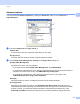
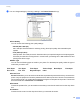

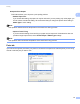




Table Of Contents
- SOFTWARE USER'S GUIDE
- Trademarks
- Table of Contents
- Windows®
- 1 Printing
- Using the Brother printer driver
- Printing a document
- Duplex printing
- Simultaneous scanning, printing and faxing
- Printer operation keys
- Status Monitor
- Printer driver settings
- Features in the Windows® printer driver
- Basic tab
- Advanced tab
- Tray Settings tab
- Support
- Features in the BR-Script (PostScript® 3™ language emulation) printer driver
- 2 Scanning
- Scanning a document using the TWAIN driver
- Scanning a document using the WIA driver (Windows® XP/Windows Vista®/Windows® 7)
- Scanning a document using the WIA driver (Windows Photo Gallery and Windows Fax and Scan)
- Using ScanSoft™ PaperPort™ 11SE with OCR by NUANCE™
- 3 ControlCenter3
- 4 Remote Setup
- 5 Brother PC-FAX Software
- 6 Firewall settings (For Network users)
- 1 Printing
- Apple Macintosh
- 7 Printing and Faxing
- 8 Scanning
- 9 ControlCenter2
- 10 Remote Setup
- Using The Scan key
- Index

Scanning
38
2
d Click the Select button.
e Choose the scanner you are using from the Available Scanners list.
Note
Choose TWAIN: TW-Brother MFC-XXXX or TWAIN: TW-Brother MFC-XXXX LAN.
f Check the Display scanner dialog box on the Scan or Get Photo panel.
g Click Scan.
The Scanner Setup dialog box appears.
h Adjust the following settings, if needed, in the Scanner Setup dialog box:
Scan (Image Type) (1)
Resolution (2)
Scan Type (3)
Reduce Noise (4)
Brightness (5)
Contrast (6)
Document Size (7)
i Click Start.
When scanning is finished, click Cancel to return to the PaperPort™ 11SE window.
Note
After you select a document size, you can adjust the scanning area further by clicking the left mouse button
and dragging it. This is required when you want to crop an image when scanning. (See Pre-Scanning to
crop a portion you want to scan on page 39.)
(1)
(2)
(3)
(4)
(5)
(6)
(7)