
User`s guide
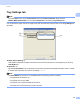

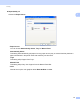
Table Of Contents
- SOFTWARE USER'S GUIDE
- Trademarks
- Table of Contents
- Windows®
- 1 Printing
- Using the Brother printer driver
- Printing a document
- Duplex printing
- Simultaneous scanning, printing and faxing
- Printer operation keys
- Status Monitor
- Printer driver settings
- Features in the Windows® printer driver
- Basic tab
- Advanced tab
- Tray Settings tab
- Support
- Features in the BR-Script (PostScript® 3™ language emulation) printer driver
- 2 Scanning
- Scanning a document using the TWAIN driver
- Scanning a document using the WIA driver (Windows® XP/Windows Vista®/Windows® 7)
- Scanning a document using the WIA driver (Windows Photo Gallery and Windows Fax and Scan)
- Using ScanSoft™ PaperPort™ 11SE with OCR by NUANCE™
- 3 ControlCenter3
- 4 Remote Setup
- 5 Brother PC-FAX Software
- 6 Firewall settings (For Network users)
- 1 Printing
- Apple Macintosh
- 7 Printing and Faxing
- 8 Scanning
- 9 ControlCenter2
- 10 Remote Setup
- Using The Scan key
- Index

Printing
28
1
Tray Settings tab 1
Note
From the Start menu, select Control Panel and then Printers and Faxes. Right-click the
Brother MFC-XXXX Printer icon and select Properties to access the Tray Settings tab.
You can define the paper size for each paper tray and auto detect the serial number in the Tray Settings tab
as follows.
Paper Source Setting (1)
This feature recognizes the paper size set from the control panel menu for each paper tray by clicking
Auto Detect (3).
Serial No. (2)
By clicking Auto Detect (3), the printer driver will probe the printer and display its serial number. If it fails
to receive the information, the screen will display "---------".
Note
The Auto Detect (3) function is not available under the following printer conditions:
• The printer power switch is off.
• The printer is in an error state.
• The printer is in a network shared environment.
• The cable is not connected to the printer correctly.
(1)
(2)
(3)