
User`s guide




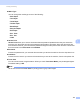
Table Of Contents
- SOFTWARE USER'S GUIDE
- Trademarks
- Table of Contents
- Windows®
- 1 Printing
- Using the Brother printer driver
- Printing a document
- Duplex printing
- Simultaneous scanning, printing and faxing
- Printer operation keys
- Status Monitor
- Printer driver settings
- Features in the Windows® printer driver
- Basic tab
- Advanced tab
- Tray Settings tab
- Support
- Features in the BR-Script (PostScript® 3™ language emulation) printer driver
- 2 Scanning
- Scanning a document using the TWAIN driver
- Scanning a document using the WIA driver (Windows® XP/Windows Vista®/Windows® 7)
- Scanning a document using the WIA driver (Windows Photo Gallery and Windows Fax and Scan)
- Using ScanSoft™ PaperPort™ 11SE with OCR by NUANCE™
- 3 ControlCenter3
- 4 Remote Setup
- 5 Brother PC-FAX Software
- 6 Firewall settings (For Network users)
- 1 Printing
- Apple Macintosh
- 7 Printing and Faxing
- 8 Scanning
- 9 ControlCenter2
- 10 Remote Setup
- Using The Scan key
- Index

Printing and Faxing
142
7
Media Type
You can change the media type to one of the following:
• Plain Paper
• Thin Paper
• Thick Paper
• Thicker Paper
• Bond Paper
• Recycled Paper
• Envelopes
• Env. Thick
• Env. Thin
• Label
Secure Print
Secure Print allows you to secure documents that are password protected when they are sent to the
machine. Only the people who know the password will be able to print them. Since the documents are
secured at the machine, you must enter the password using the control panel of the machine. The secured
document must have a Password and Job Name.
Password
Choose the password for your secured document that you send to the machine from the drop-down box.
Job Name
Choose the Job name for your secured document that you sent to the machine, from the drop-down list.
Toner Save
You can conserve toner using this feature. When you check Toner Save Mode, your prints appear lighter.
The default setting is Off.
Note
We do not recommend Toner Save for printing photo or gray scale images.