
User`s guide


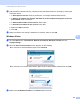
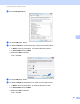
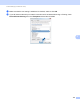



Table Of Contents
- SOFTWARE USER'S GUIDE
- Trademarks
- Table of Contents
- Windows®
- 1 Printing
- Using the Brother printer driver
- Printing a document
- Duplex printing
- Simultaneous scanning, printing and faxing
- Printer operation keys
- Status Monitor
- Printer driver settings
- Features in the Windows® printer driver
- Basic tab
- Advanced tab
- Tray Settings tab
- Support
- Features in the BR-Script (PostScript® 3™ language emulation) printer driver
- 2 Scanning
- Scanning a document using the TWAIN driver
- Scanning a document using the WIA driver (Windows® XP/Windows Vista®/Windows® 7)
- Scanning a document using the WIA driver (Windows Photo Gallery and Windows Fax and Scan)
- Using ScanSoft™ PaperPort™ 11SE with OCR by NUANCE™
- 3 ControlCenter3
- 4 Remote Setup
- 5 Brother PC-FAX Software
- 6 Firewall settings (For Network users)
- 1 Printing
- Apple Macintosh
- 7 Printing and Faxing
- 8 Scanning
- 9 ControlCenter2
- 10 Remote Setup
- Using The Scan key
- Index

Firewall settings (For Network users)
107
6
d Click the Exceptions tab.
e Click the Add port... button.
f To add port 54925 for network scanning, enter the information below:
1In Name: Enter any description, for example “Brother Scanner”.
2In Port number: Enter “54925”.
3 Make sure UDP is selected.
Then, click OK.
g Click the Add port... button.
h To add port 54926 for Network PC-Fax, enter the information below:
1In Name: Enter any description, for example “Brother PC-Fax“.
2In Port number: Enter “54926”.
3 Make sure UDP is selected.
Then, click OK.