
User`s guide

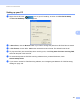
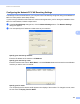
Table Of Contents
- SOFTWARE USER'S GUIDE
- Trademarks
- Table of Contents
- Windows®
- 1 Printing
- Using the Brother printer driver
- Printing a document
- Duplex printing
- Simultaneous scanning, printing and faxing
- Printer operation keys
- Status Monitor
- Printer driver settings
- Features in the Windows® printer driver
- Basic tab
- Advanced tab
- Tray Settings tab
- Support
- Features in the BR-Script (PostScript® 3™ language emulation) printer driver
- 2 Scanning
- Scanning a document using the TWAIN driver
- Scanning a document using the WIA driver (Windows® XP/Windows Vista®/Windows® 7)
- Scanning a document using the WIA driver (Windows Photo Gallery and Windows Fax and Scan)
- Using ScanSoft™ PaperPort™ 11SE with OCR by NUANCE™
- 3 ControlCenter3
- 4 Remote Setup
- 5 Brother PC-FAX Software
- 6 Firewall settings (For Network users)
- 1 Printing
- Apple Macintosh
- 7 Printing and Faxing
- 8 Scanning
- 9 ControlCenter2
- 10 Remote Setup
- Using The Scan key
- Index

Brother PC-FAX Software
102
5
Configuring the Network PC-FAX Receiving Settings 5
The settings to send received faxes to your computer were automatically configured during the installation of
MFL-Pro Suite (see the Quick Setup Guide).
If you are using a different machine than the one that was registered to your PC during the installation of the
MFL-Pro Suite software, follow the steps below.
a In the PC-Fax RX Setup dialogue box, click the Network Settings button. The Network Settings
dialog box appears.
b You must specify the IP address or Node name of your machine.
Specify your machine by address
Enter the IP address of the machine in IP Address.
Specify your machine by name
Enter the machine node name in Node Name, or click the Browse button and choose the correct Brother
machine you want to use from the list.
Specify your PC name
You can specify the PC name that will appear on the display of the machine. To change the name, enter
the new name in Display Your PC Name.