
User`s guide
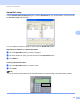

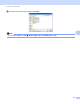
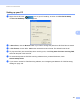
Table Of Contents
- SOFTWARE USER'S GUIDE
- Trademarks
- Table of Contents
- Windows®
- 1 Printing
- Using the Brother printer driver
- Printing a document
- Duplex printing
- Simultaneous scanning, printing and faxing
- Printer operation keys
- Status Monitor
- Printer driver settings
- Features in the Windows® printer driver
- Basic tab
- Advanced tab
- Tray Settings tab
- Support
- Features in the BR-Script (PostScript® 3™ language emulation) printer driver
- 2 Scanning
- Scanning a document using the TWAIN driver
- Scanning a document using the WIA driver (Windows® XP/Windows Vista®/Windows® 7)
- Scanning a document using the WIA driver (Windows Photo Gallery and Windows Fax and Scan)
- Using ScanSoft™ PaperPort™ 11SE with OCR by NUANCE™
- 3 ControlCenter3
- 4 Remote Setup
- 5 Brother PC-FAX Software
- 6 Firewall settings (For Network users)
- 1 Printing
- Apple Macintosh
- 7 Printing and Faxing
- 8 Scanning
- 9 ControlCenter2
- 10 Remote Setup
- Using The Scan key
- Index

Brother PC-FAX Software
96
5
Exporting the Address Book 5
You can export the whole Address Book to an ASCII text file (*.csv). You can also create a vCard for an
address book member that can be attached to an outgoing E-mail(A vCard is an electronic business card that
contains the sender’s contact information.) You can also export the Address Book as Remote Setup Dial Data
that can be used by the Remote Setup application of your machine. (See Remote Setup on page 83.) If you
are creating a vCard, you must first click on the address book member you want to create the vCard for.
Exporting Address Book entries 5
Note
• If you are creating a vCard, you must first choose the member.
• If you choose vCard in step a, Save as type: will be vCard (*.vcf).
a Do one of the following:
From the Address Book, click File, Export, then Text.
From the Address Book, click File, Export, then vCard and go to step e.
From the Address Book, click File, Export, then Remote Setup Dial Data and go to step e.
b From the Available Items column, choose the data fields you want to export and then click Add >>.
Note
Choose the items in the order you want them listed.
c If you are exporting to an ASCII file, choose Tab or Comma from Divide Character. This chooses Tab
or Comma to separate the data fields.
d Click OK to save the data.