
User Manual

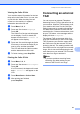

Table Of Contents
- USER’S GUIDE MFC-9125CN MFC-9325CW
- Approval Information and Compilation and Publication Notice
- Table of Contents
- Section I: General
- 1 General information
- Using the documentation
- Accessing the Software User’s Guide and Network User’s Guide
- Viewing documentation
- Viewing documentation (Windows®)
- How to find scanning instructions
- Software User’s Guide:
- ScanSoft™ PaperPort™ 11SE with OCR How-to-Guides:
- How to find Network setup instructions
- Viewing documentation (Macintosh)
- How to find scanning instructions
- Software User’s Guide:
- Presto! PageManager User’s Guide:
- How to find Network setup instructions
- Viewing the Mobile Print/Scan Guide documentation
- Viewing documentation
- Accessing Brother Support (For Windows®)
- Control panel overview
- 2 Loading paper and documents
- 3 General Setup
- 4 Security features
- 1 General information
- Section II: Fax
- 5 Sending a fax
- How to fax
- Broadcasting (black & white only)
- Additional sending operations
- Sending faxes using multiple settings
- Electronic cover page (black & white only)
- Contrast
- Changing Fax Resolution
- Dual access (black & white only)
- Real Time Transmission
- Overseas Mode
- Delayed Fax (black & white only)
- Delayed batch transmission (black & white only)
- Checking and cancelling waiting jobs
- Sending a fax manually
- Out of memory message
- 6 Receiving a fax
- 7 Telephone and external devices
- Telephone line services
- Telephone Service for Australia
- Telephone Service for New Zealand
- Telephone Service for Some Countries
- Connecting an external TAD
- External and extension telephones
- 8 Dialling and storing numbers
- 9 Remote Fax Options (black & white only)
- 10 Polling
- 11 Printing reports
- 5 Sending a fax
- Section III: Copy
- Section IV: Direct printing
- Section V: Software
- Section VI: Appendixes
- A Safety and legal
- B Options
- C Troubleshooting and routine maintenance
- Troubleshooting
- Error and maintenance messages
- Routine maintenance
- Replacing the consumable items
- Replacing periodic maintenance parts
- Machine Information
- Packing and shipping the machine
- D Menu and features
- E Specifications
- F Glossary
- Index

Chapter 7
58
Connections 7
The external TAD must be connected as
shown in the illustration below.
1TAD
2 Protective Cap
a Set your external TAD to one or two
rings. (The machine’s Ring Delay
setting does not apply.)
b Record the outgoing message on your
external TAD.
c Set the TAD to answer calls.
d Set the Receive Mode to
External TAD. (See Choosing the
receive mode on page 46.)
Recording an outgoing
message (OGM) 7
a Record 5 seconds of silence at the
beginning of your message. This allows
your machine time to listen for fax tones.
b Limit your speaking to 20 seconds.
c End your 20-second message by giving
your Remote Activation code for people
sending manual faxes. For example:
“After the beep, leave a message or
press l51 (l91 for New Zealand) and
Start to send a fax.”
Note
• You need to turn the Remote Codes
setting to on to use the Fax Activation
Code l51 (l91 for New Zealand). (See
Using Remote Codes on page 60.)
• We recommend beginning your OGM with
an initial 5 second silence because the
machine cannot hear fax tones over a loud
voice. You may try leaving out this pause,
but if your machine has trouble receiving
faxes, then you should re-record the OGM
to include it.
Multi-line connections (PABX)7
Most offices use a central telephone system.
Brother recommends that all our Fax/MFC
machines be connected to a discreet
(dedicated) line. Although a particular PABX
may appear to work with a particular model of
fax machine, we cannot guarantee that the
unit will operate correctly.
While it is often relatively simple to connect a
fax machine to a PABX (Private Automatic
Branch Exchange), we suggest that you
contact the company that installed your
telephone system and ask them to connect
the fax machine for you.
Brother does not recommend the use of a
PABX line. PABX limitations in general can
cause some functions of the fax machine not
to work correctly.
1
1
(Example for Australia)
2