
User Manual

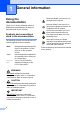
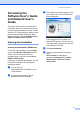
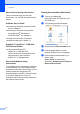
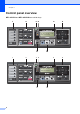
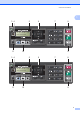
Table Of Contents
- USER’S GUIDE MFC-9125CN MFC-9325CW
- Approval Information and Compilation and Publication Notice
- Table of Contents
- Section I: General
- 1 General information
- Using the documentation
- Accessing the Software User’s Guide and Network User’s Guide
- Viewing documentation
- Viewing documentation (Windows®)
- How to find scanning instructions
- Software User’s Guide:
- ScanSoft™ PaperPort™ 11SE with OCR How-to-Guides:
- How to find Network setup instructions
- Viewing documentation (Macintosh)
- How to find scanning instructions
- Software User’s Guide:
- Presto! PageManager User’s Guide:
- How to find Network setup instructions
- Viewing the Mobile Print/Scan Guide documentation
- Viewing documentation
- Accessing Brother Support (For Windows®)
- Control panel overview
- 2 Loading paper and documents
- 3 General Setup
- 4 Security features
- 1 General information
- Section II: Fax
- 5 Sending a fax
- How to fax
- Broadcasting (black & white only)
- Additional sending operations
- Sending faxes using multiple settings
- Electronic cover page (black & white only)
- Contrast
- Changing Fax Resolution
- Dual access (black & white only)
- Real Time Transmission
- Overseas Mode
- Delayed Fax (black & white only)
- Delayed batch transmission (black & white only)
- Checking and cancelling waiting jobs
- Sending a fax manually
- Out of memory message
- 6 Receiving a fax
- 7 Telephone and external devices
- Telephone line services
- Telephone Service for Australia
- Telephone Service for New Zealand
- Telephone Service for Some Countries
- Connecting an external TAD
- External and extension telephones
- 8 Dialling and storing numbers
- 9 Remote Fax Options (black & white only)
- 10 Polling
- 11 Printing reports
- 5 Sending a fax
- Section III: Copy
- Section IV: Direct printing
- Section V: Software
- Section VI: Appendixes
- A Safety and legal
- B Options
- C Troubleshooting and routine maintenance
- Troubleshooting
- Error and maintenance messages
- Routine maintenance
- Replacing the consumable items
- Replacing periodic maintenance parts
- Machine Information
- Packing and shipping the machine
- D Menu and features
- E Specifications
- F Glossary
- Index

Chapter 1
8
1 One Touch keys
These 4 keys give you instant access to 8
previously stored numbers.
Shift
Lets you access One Touch numbers 5 to 8
when held down.
2 Fax, Copy and Print keys
Fax keys:
Hook
Press before dialing if you want to make sure a
fax machine will answer, and then press Start.
Also, press this key after you pick up the
handset of an external telephone during the
F/T ring (fast double-rings).
Redial/Pause
Redials the last number called. It also inserts a
pause when programming quick dial numbers
or when dialling a number manually.
Resolution
Sets the resolution when sending a fax.
Copy keys:
Options
You can quickly and easily choose temporary
settings for copying.
Enlarge/Reduce
Reduces or enlarges copies.
Quality
Lets you change the quality for the next copy.
Print keys:
Direct (MFC-9325CW)
Lets you print data from a USB flash memory
drive or PictBridge compatible camera directly
to the machine.
(See Printing photos from a digital camera
(MFC-9325CW only) on page 94.)
Reports (MFC-9125CN)
Print the Transmission Verification Reports,
Help List, Tel Index List, Fax Journal, User
Settings and Network Config.
Secure
You can print data saved in the memory when
you enter your four-digit password. (For details
about using the Secure key, see the Software
User’s Guide on the CD-ROM.)
(MFC-9325CW) When using Secure Function
Lock, you can switch restricted users by
holding down Shift as you press Secure. (See
Secure Function Lock 2.0 (MFC-9325CW only)
on page 29.)
Job Cancel
Cancels a programmed print job and clears it
from the machine’s memory. To cancel
multiple print jobs, hold down this key until the
LCD shows Job Cancel (All).
3 Data LED
The LED will flash depending on the machine
status.
4Error LED
Blinks in orange when the LCD displays an
error or an important status message.
5LCD
Displays messages to help you set up and use
your machine.
(MFC-9325CW only) A four level indicator
shows the current wireless signal strength if
you are using a wireless connection.
6 Clear/Back
Deletes entered data or lets you cancel the
current setting.
OK
Lets you store your settings in the machine.
Volume keys:
d or c
Press to scroll backwards or forwards through
menu selections. Press to change the volume
when in fax or standby mode.
a or b
Press to scroll through the menus and options.
Address Book:
Lets you look up numbers that are stored in the
dialling memory. It also allows you to dial stored
numbers by pressing a three digit number.
0Max