
User Manual

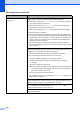
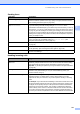
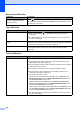
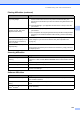

Table Of Contents
- USER’S GUIDE MFC-9125CN MFC-9325CW
- Approval Information and Compilation and Publication Notice
- Table of Contents
- Section I: General
- 1 General information
- Using the documentation
- Accessing the Software User’s Guide and Network User’s Guide
- Viewing documentation
- Viewing documentation (Windows®)
- How to find scanning instructions
- Software User’s Guide:
- ScanSoft™ PaperPort™ 11SE with OCR How-to-Guides:
- How to find Network setup instructions
- Viewing documentation (Macintosh)
- How to find scanning instructions
- Software User’s Guide:
- Presto! PageManager User’s Guide:
- How to find Network setup instructions
- Viewing the Mobile Print/Scan Guide documentation
- Viewing documentation
- Accessing Brother Support (For Windows®)
- Control panel overview
- 2 Loading paper and documents
- 3 General Setup
- 4 Security features
- 1 General information
- Section II: Fax
- 5 Sending a fax
- How to fax
- Broadcasting (black & white only)
- Additional sending operations
- Sending faxes using multiple settings
- Electronic cover page (black & white only)
- Contrast
- Changing Fax Resolution
- Dual access (black & white only)
- Real Time Transmission
- Overseas Mode
- Delayed Fax (black & white only)
- Delayed batch transmission (black & white only)
- Checking and cancelling waiting jobs
- Sending a fax manually
- Out of memory message
- 6 Receiving a fax
- 7 Telephone and external devices
- Telephone line services
- Telephone Service for Australia
- Telephone Service for New Zealand
- Telephone Service for Some Countries
- Connecting an external TAD
- External and extension telephones
- 8 Dialling and storing numbers
- 9 Remote Fax Options (black & white only)
- 10 Polling
- 11 Printing reports
- 5 Sending a fax
- Section III: Copy
- Section IV: Direct printing
- Section V: Software
- Section VI: Appendixes
- A Safety and legal
- B Options
- C Troubleshooting and routine maintenance
- Troubleshooting
- Error and maintenance messages
- Routine maintenance
- Replacing the consumable items
- Replacing periodic maintenance parts
- Machine Information
- Packing and shipping the machine
- D Menu and features
- E Specifications
- F Glossary
- Index

Troubleshooting and routine maintenance
135
C
Network difficulties
Difficulties Suggestions
Cannot print over a wired Network. If you are having Network problems see the Network User’s Guide on the
CD-ROM for more information.
Make sure your machine is powered on and is on-line and in the Ready mode.
Print the Network Configuration list to see your current Network settings. (See
How to print a report on page 83.) Reconnect the LAN cable to the hub to verify
that the cable and network connections are good. If possible, try connecting the
machine to a different port on your hub using a different cable. If the connections
are good, the lower LED of the back panel of the machine will be green.
The network scanning feature
does not work.
(Windows
®
)
If you are using personal firewall software, it may be necessary to set your third-
party Security/Firewall Software to allow Network scanning. To add port 54925
for Network scanning, enter the information below:
In Name: Enter any description, for example Brother NetScan.
In Port number: Enter 54925.
In Protocol: UDP is selected.
Please refer to the instruction manual that came with your third-party
Security/Firewall Software or contact the software manufacturer.
For more details, you can read FAQs and troubleshooting suggestions at
http://solutions.brother.com/
.
(Macintosh)
The network scanning feature may not work due to the firewall settings.
Change or disable the firewall settings. If you are using a third-party personal
Firewall software, see the User's Guide for your software or contact the
software manufacturer.
Re-select your machine in the Device Selector application located in
Macintosh HD/Library/Printers/Brother/Utilities/Device Selector or from
the model list in ControlCenter2.
The network PC-Fax Receive
feature does not work.
(Windows
®
only)
If you are using personal firewall software, it may be necessary to set your third-
party Security/Firewall Software to allow PC-FAX Rx. To add port 54926 for
Network PC-FAX Rx, enter the information below:
In Name: Enter any description, for example Brother PC-FAX Rx.
In Port number: Enter 54926.
In Protocol: UDP is selected.
Please refer to the instruction manual that came with your third-party
Security/Firewall Software or contact the software manufacturer.
For more details, you can read FAQs and troubleshooting suggestions at
http://solutions.brother.com/
.
Your computer cannot find your
machine.
(Windows
®
) The firewall setting on your PC may be rejecting the necessary
network connection. (For details, see the instructions above.)
(Macintosh) Re-select your machine in the Device Selector application located
in Macintosh HD/Library/Printers/Brother/Utilities/DeviceSelector or from
the Model pop-up menu of ControlCenter2.