
User Manual

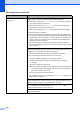
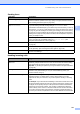
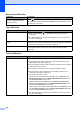
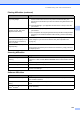

Table Of Contents
- USER’S GUIDE MFC-9125CN MFC-9325CW
- Approval Information and Compilation and Publication Notice
- Table of Contents
- Section I: General
- 1 General information
- Using the documentation
- Accessing the Software User’s Guide and Network User’s Guide
- Viewing documentation
- Viewing documentation (Windows®)
- How to find scanning instructions
- Software User’s Guide:
- ScanSoft™ PaperPort™ 11SE with OCR How-to-Guides:
- How to find Network setup instructions
- Viewing documentation (Macintosh)
- How to find scanning instructions
- Software User’s Guide:
- Presto! PageManager User’s Guide:
- How to find Network setup instructions
- Viewing the Mobile Print/Scan Guide documentation
- Viewing documentation
- Accessing Brother Support (For Windows®)
- Control panel overview
- 2 Loading paper and documents
- 3 General Setup
- 4 Security features
- 1 General information
- Section II: Fax
- 5 Sending a fax
- How to fax
- Broadcasting (black & white only)
- Additional sending operations
- Sending faxes using multiple settings
- Electronic cover page (black & white only)
- Contrast
- Changing Fax Resolution
- Dual access (black & white only)
- Real Time Transmission
- Overseas Mode
- Delayed Fax (black & white only)
- Delayed batch transmission (black & white only)
- Checking and cancelling waiting jobs
- Sending a fax manually
- Out of memory message
- 6 Receiving a fax
- 7 Telephone and external devices
- Telephone line services
- Telephone Service for Australia
- Telephone Service for New Zealand
- Telephone Service for Some Countries
- Connecting an external TAD
- External and extension telephones
- 8 Dialling and storing numbers
- 9 Remote Fax Options (black & white only)
- 10 Polling
- 11 Printing reports
- 5 Sending a fax
- Section III: Copy
- Section IV: Direct printing
- Section V: Software
- Section VI: Appendixes
- A Safety and legal
- B Options
- C Troubleshooting and routine maintenance
- Troubleshooting
- Error and maintenance messages
- Routine maintenance
- Replacing the consumable items
- Replacing periodic maintenance parts
- Machine Information
- Packing and shipping the machine
- D Menu and features
- E Specifications
- F Glossary
- Index

Troubleshooting and routine maintenance
133
C
The machine prints unexpectedly
or it prints garbage.
Pull out the paper tray and wait until the machine stops printing. Then turn off
the machine and disconnect from the power for several minutes. (The
machine can be turned off for up to 60 hours without losing faxes stored in the
memory.)
Check the settings in your application to make sure it is set up to work with
your machine.
The machine prints the first couple
of pages correctly, then some
pages have text missing.
Check the settings in your application to make sure that it is set up to work with
your machine.
Your computer is not recognising the machine’s input buffer’s full signal. Make
sure that you connected the interface cable correctly. (See the Quick Setup
Guide.)
The headers or footers appear
when the document displays on the
screen but they do not show up
when it is printed.
There is an unprintable area on the top and bottom of the page. Adjust the top and
bottom margins in your document to allow for this. (See Unprintable area
on page 17.)
The machine is not printing or has
stopped printing.
Press Job Cancel.
As the machine cancels the job and clears it from the memory it may produce an
incomplete printout.
Scanning difficulties
Difficulties Suggestions
TWAIN errors appear while
scanning.
Make sure that the Brother TWAIN driver is chosen as the primary source. In
PaperPort™ 11SE, click File, Scan or Get Photo and choose the Brother TWAIN
driver.
OCR does not work. Try increasing the scanning resolution.
Network scanning does not work. See Network difficulties on page 135.
Cannot scan. (For MFC-9325CW only) Contact your administrator to check your Secure
Function Lock Settings.
Software difficulties
Difficulties Suggestions
Cannot install software or print. Run the Repair MFL-Pro Suite program on the CD-ROM. This program will repair
and reinstall the software.
Cannot perform ‘2 in 1’ or ‘4 in 1’
printing.
Check that the paper size setting in the application and in the printer driver are the
same.
The machine does not print from
Adobe
®
Illustrator
®
.
Try to reduce the print resolution. (See Advanced tab in the Software User’s Guide
on the CD-ROM.)
Printing difficulties (continued)
Difficulties Suggestions