
User Manual

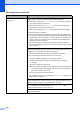
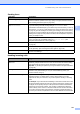
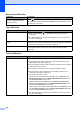
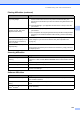

Table Of Contents
- USER’S GUIDE MFC-9125CN MFC-9325CW
- Approval Information and Compilation and Publication Notice
- Table of Contents
- Section I: General
- 1 General information
- Using the documentation
- Accessing the Software User’s Guide and Network User’s Guide
- Viewing documentation
- Viewing documentation (Windows®)
- How to find scanning instructions
- Software User’s Guide:
- ScanSoft™ PaperPort™ 11SE with OCR How-to-Guides:
- How to find Network setup instructions
- Viewing documentation (Macintosh)
- How to find scanning instructions
- Software User’s Guide:
- Presto! PageManager User’s Guide:
- How to find Network setup instructions
- Viewing the Mobile Print/Scan Guide documentation
- Viewing documentation
- Accessing Brother Support (For Windows®)
- Control panel overview
- 2 Loading paper and documents
- 3 General Setup
- 4 Security features
- 1 General information
- Section II: Fax
- 5 Sending a fax
- How to fax
- Broadcasting (black & white only)
- Additional sending operations
- Sending faxes using multiple settings
- Electronic cover page (black & white only)
- Contrast
- Changing Fax Resolution
- Dual access (black & white only)
- Real Time Transmission
- Overseas Mode
- Delayed Fax (black & white only)
- Delayed batch transmission (black & white only)
- Checking and cancelling waiting jobs
- Sending a fax manually
- Out of memory message
- 6 Receiving a fax
- 7 Telephone and external devices
- Telephone line services
- Telephone Service for Australia
- Telephone Service for New Zealand
- Telephone Service for Some Countries
- Connecting an external TAD
- External and extension telephones
- 8 Dialling and storing numbers
- 9 Remote Fax Options (black & white only)
- 10 Polling
- 11 Printing reports
- 5 Sending a fax
- Section III: Copy
- Section IV: Direct printing
- Section V: Software
- Section VI: Appendixes
- A Safety and legal
- B Options
- C Troubleshooting and routine maintenance
- Troubleshooting
- Error and maintenance messages
- Routine maintenance
- Replacing the consumable items
- Replacing periodic maintenance parts
- Machine Information
- Packing and shipping the machine
- D Menu and features
- E Specifications
- F Glossary
- Index

Troubleshooting and routine maintenance
131
C
Sending faxes
Difficulties Suggestions
Poor sending quality. Try changing your resolution to Fine or S.Fine. Make a copy to check your
machine’s scanner operation. If the copy quality is not good, clean the scanner.
(See Cleaning the scanner glass on page 159.)
Transmission Verification Report
says RESULT:ERROR.
There is probably temporary noise or static on the line. Try sending the fax again.
If you are sending a PC Fax message and get RESULT:ERROR on the
Transmission Verification Report, your machine may be out of memory. To free up
extra memory, you can turn off fax storage (see Turning off Remote Fax Options
on page 74), print fax messages in memory (see Printing a fax from the memory
on page 51) or cancel a delayed fax or polling job (see Checking and cancelling
waiting jobs on page 45). If the problem continues, ask the telephone company to
check your telephone line.
If you often get transmission errors due to possible interference on the telephone
line, try changing the Compatibility setting to Basic(for VoIP). (See
Telephone line interference/ VoIP on page 144.)
Sent faxes are blank. Make sure you are loading the document properly. (See Loading documents
on page 23)
Vertical black lines when sending. Black vertical lines on faxes you send are typically caused by dirt or correction fluid
on the glass strip. (See Cleaning the scanner glass on page 159.)
Cannot send a fax. (For MFC-9325CW only) Contact your administrator to check your Secure
Function Lock Settings.
Handling incoming calls
Difficulties Suggestions
The machine ‘Hears’ a voice as a
CNG Tone.
If Fax Detect is set to On, your machine is more sensitive to sounds. It may
mistakenly interpret certain voices or music on the line as a fax machine calling
and respond with fax receiving tones. Deactivate the machine by pressing
Stop/Exit. Try avoiding this problem by turning Fax Detect to Off. (See Fax Detect
on page 49.)
Sending a Fax Call to the machine. If you answered on an external or extension telephone, press your Remote
Activation code (default setting is l51 (l91 for New Zealand)). When your
machine answers, hang up.
Custom features on a single line. If you have Call Waiting, Call Waiting/Caller ID, Caller ID, Voice Mail, an
answering machine, an alarm system or other custom feature on a single
telephone line with your machine, it may create a problem sending or receiving
faxes.
For Example: If you subscribe to Call Waiting or some other custom service and
its signal comes through the line while your machine is sending or receiving a fax,
the signal can temporarily interrupt or disrupt the faxes. Brother’s ECM feature
should help overcome this problem. This condition is related to the telephone
system industry and is common to all devices that send and receive information
on a single, shared line with custom features. If avoiding a slight interruption is
crucial to your business, a separate line with no custom features is recommended.