
User Manual
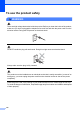
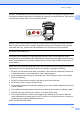

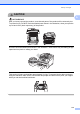



Table Of Contents
- USER’S GUIDE MFC-9125CN MFC-9325CW
- Approval Information and Compilation and Publication Notice
- Table of Contents
- Section I: General
- 1 General information
- Using the documentation
- Accessing the Software User’s Guide and Network User’s Guide
- Viewing documentation
- Viewing documentation (Windows®)
- How to find scanning instructions
- Software User’s Guide:
- ScanSoft™ PaperPort™ 11SE with OCR How-to-Guides:
- How to find Network setup instructions
- Viewing documentation (Macintosh)
- How to find scanning instructions
- Software User’s Guide:
- Presto! PageManager User’s Guide:
- How to find Network setup instructions
- Viewing the Mobile Print/Scan Guide documentation
- Viewing documentation
- Accessing Brother Support (For Windows®)
- Control panel overview
- 2 Loading paper and documents
- 3 General Setup
- 4 Security features
- 1 General information
- Section II: Fax
- 5 Sending a fax
- How to fax
- Broadcasting (black & white only)
- Additional sending operations
- Sending faxes using multiple settings
- Electronic cover page (black & white only)
- Contrast
- Changing Fax Resolution
- Dual access (black & white only)
- Real Time Transmission
- Overseas Mode
- Delayed Fax (black & white only)
- Delayed batch transmission (black & white only)
- Checking and cancelling waiting jobs
- Sending a fax manually
- Out of memory message
- 6 Receiving a fax
- 7 Telephone and external devices
- Telephone line services
- Telephone Service for Australia
- Telephone Service for New Zealand
- Telephone Service for Some Countries
- Connecting an external TAD
- External and extension telephones
- 8 Dialling and storing numbers
- 9 Remote Fax Options (black & white only)
- 10 Polling
- 11 Printing reports
- 5 Sending a fax
- Section III: Copy
- Section IV: Direct printing
- Section V: Software
- Section VI: Appendixes
- A Safety and legal
- B Options
- C Troubleshooting and routine maintenance
- Troubleshooting
- Error and maintenance messages
- Routine maintenance
- Replacing the consumable items
- Replacing periodic maintenance parts
- Machine Information
- Packing and shipping the machine
- D Menu and features
- E Specifications
- F Glossary
- Index

Safety and legal
111
A
DO NOT use flammable substances near the product. DO NOT use any type of spray to clean
the inside or outside of the product. Doing this may cause a fire or electrical shock. See Routine
maintenance on page 158 for how to clean the product.
DO NOT use a vacuum cleaner to clean up scattered toner. Doing this might cause the toner
dust to ignite inside the vacuum cleaner, potentially starting a fire. Please carefully clean the
toner dust with a dry, lint-free soft cloth and dispose of it according to local regulations.
Be careful not to inhale toner.
Use caution when installing or modifying telephone lines. Never touch telephone wires or
terminals that are not insulated unless the telephone line has been unplugged at the wall socket.
Never install telephone wiring during a lightning storm. Never install a telephone wall socket in
a wet location.
When using your telephone equipment, basic safety precautions should always be followed to
reduce the risk of fire, electrical shock and injury to people, including the following:
1 DO NOT use this product near water, for example, near a bath tub, wash bowl, kitchen sink
or washing product, in a wet basement or near a swimming pool.
2 Avoid using this product during an electrical storm. There may be a remote risk of electric
shock from lightning.
3 DO NOT use this product to report a gas leak in the vicinity of the leak.
4 We DO NOT advise using an extension lead.
5 Never install telephone wiring during a lightning storm. Never install a telephone wall socket
in a wet location.
6 If any cables become damaged, disconnect your product, and contact your Brother dealer.
7 DO NOT place any objects on the product, or obstruct the air vents.
8 This product should be connected to an adjacent grounded AC power source within the
range indicated on the rating label. DO NOT connect it to a DC power source or inverter. If
you are not sure, contact a qualified electrician.
SAVE THESE INSTRUCTIONS