
User Manual
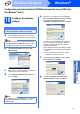
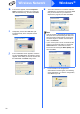
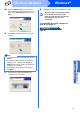
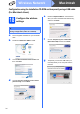
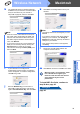
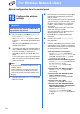
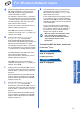
Table Of Contents
- Quick Setup Guide MFC-9325CW
- Start Here
- 1 Unpack the machine and check the components
- 2 Remove the packing material from the machine
- 3 Install the drum unit and toner cartridge assemblies
- 4 Load paper in the paper tray
- 5 Connect the power cord and telephone line
- 6 Set your country (for Australia/New Zealand customer only)
- 7 Choose a Receive Mode
- 8 Set the LCD contrast (if needed)
- 9 Set the date and time
- 10 Enter personal information (station ID)
- 11 Fax Transmission Report
- 12 Set tone or pulse dialling mode (not available for New Zealand)
- 13 Dial Prefix
- 14 Automatic Daylight Savings Time
- 15 Choose your connection type
- For USB Interface Users (Windows® XP/XP Professional x64 Edition/Windows Vista®/ Windows® 7)
- For USB Interface Users(Mac OS X 10.4.11 - 10.6.x)
- For Wired Network Interface Users(Windows® XP/XP Professional x64 Edition/Windows Vista®/Windows® 7)
- For Wired Network Interface Users(Mac OS X 10.4.11 - 10.6.x)
- For Wireless Network Interface Users
- 16 Before you begin
- 17 Choose your wireless install method
- Configuration using the Installation CD-ROM and temporarily using a USB cable (For Windows® Users)
- Configuration using the Installation CD-ROM and temporarily using a USB cable (For Macintosh Users)
- Manual configuration from the control panel
- One push configuration using Wi-Fi Protected Setup or AOSS™
- Install the Drivers & Software (Windows® XP/XP Professional x64 Edition/Windows Vista®/ Windows® 7)
- Install the Drivers & Software (Mac OS X 10.4.11 - 10.6.x)
- For Network Users
- Options and Consumables
- Start Here

31
Windows
®
Wireless Network
Wireless Network
Windows
®
Macintosh
Configuration using the Installation CD-ROM and temporarily using a USB cable
(For Windows
®
Users)
18
Configure the wireless
settings
a
Put the installation CD-ROM into your CD-ROM
drive. If prompted, select your model and language.
b Click Initial Installation and then Install
MFL-Pro Suite.
c Click Yes if you accept the license agreement.
Follow the on-screen instructions.
d Choose Wireless Network Connection and
then click Next.
e When this screen appears, choose Change
the Firewall port settings to enable network
connection and continue with the
installation. (Recommended) and click Next.
If you are not using the Windows
®
Firewall, see
the user's guide of your firewall or antivirus
software for information on how to add the
following network ports.
For network scanning, add UDP port 54925.
For network PC-Fax receiving, add UDP port
54926.
If you still have trouble with your network
connection, add UDP port 137.
f Choose Use your computer or the control
panel directly and click Next.
g Choose Temporarily use a USB cable
(Recommended) and then click Next.
IMPORTANT
You need to temporarily use a USB cable
during configuration (cable not included).
Note
If the Brother screen does not appear automatically,
go to
My Computer (Computer)
, double-click the
CD-ROM icon, and then double-click
start.exe
.
Note
For Windows Vista
®
and Windows
®
7, when the
User Account Control screen appears, click
Allow or Yes.