
User Manual


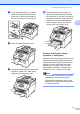

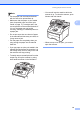



Table Of Contents
- USER’S GUIDE MFC-9120CN MFC-9320CW
- Approval Information and Compilation and Publication Notice
- Table of Contents
- Section I: General
- Section II: Fax
- Sending a fax
- How to fax
- Broadcasting (black & white only)
- Additional sending operations
- Sending faxes using multiple settings
- Electronic cover page (black & white only)
- Contrast
- Changing Fax Resolution
- Dual access (black & white only)
- Real Time Transmission
- Overseas Mode
- Delayed Fax (black & white only)
- Delayed batch transmission (black & white only)
- Checking and cancelling waiting jobs
- Sending a fax manually
- Out of memory message
- Receiving a fax
- Telephone and external devices
- Dialling and storing numbers
- Remote Fax Options (black & white only)
- Polling
- Printing reports
- Sending a fax
- Section III: Copy
- Section IV: Direct printing
- Section V: Software
- Section VI: Appendixes
- Index
- brother CHN_ENG

11
2
2
Loading paper and
print media 2
The machine can feed paper from the
standard paper tray.
When you put paper into the paper tray, note
the following:
If your application software supports
paper size selection on the print menu,
you can select it through the software. If
your application software does not
support it, you can set the paper size in
the printer driver or by using the control
panel buttons.
Loading paper in the standard
paper tray 2
Printing on plain paper, thin paper or
recycled paper from the paper tray
2
a Pull the paper tray completely out of the
machine.
b While pressing the green paper-guide
release lever (1), slide the paper guides
to fit the paper size you are loading in
the tray. Make sure that the guides are
firmly in the slots.
Note
For Legal and Folio size paper, press the
release button (1) in the bottom of the
paper tray and then pull out the back of the
paper tray. (Legal or Folio size paper is
not available in some regions.)
Loading paper and documents 2
1
1