
User Manual
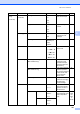
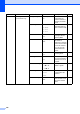
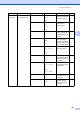

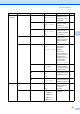
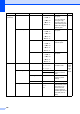

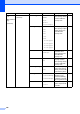

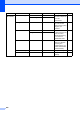
Table Of Contents
- USER’S GUIDE MFC-9120CN MFC-9320CW
- Approval Information and Compilation and Publication Notice
- Table of Contents
- Section I: General
- Section II: Fax
- Sending a fax
- How to fax
- Broadcasting (black & white only)
- Additional sending operations
- Sending faxes using multiple settings
- Electronic cover page (black & white only)
- Contrast
- Changing Fax Resolution
- Dual access (black & white only)
- Real Time Transmission
- Overseas Mode
- Delayed Fax (black & white only)
- Delayed batch transmission (black & white only)
- Checking and cancelling waiting jobs
- Sending a fax manually
- Out of memory message
- Receiving a fax
- Telephone and external devices
- Dialling and storing numbers
- Remote Fax Options (black & white only)
- Polling
- Printing reports
- Sending a fax
- Section III: Copy
- Section IV: Direct printing
- Section V: Software
- Section VI: Appendixes
- Index
- brother CHN_ENG

Menu and features
191
D
1.General
Setup
(Continued)
3.Volume
(Continued)
2.Beeper Off
Low
Med*
High
Adjusts the volume
level of the beeper.
25
3.Speaker Off
Low
Med*
High
Adjusts the speaker
volume.
25
4.Ecology 1.Toner Save On
Off*
Increases the page
yield of the toner
cartridge.
26
2.Sleep Time Range varies
depending on
model.
005Min*
Conserves power. 26
5.LCD Contrast
—
b -nnnno+
a
b
-nnnon+ a
b -nnonn+* a
b -nonnn+ a
b -onnnn+ a
Adjusts the contrast
of the LCD.
26
6.Security 1.Memory Security
(MFC-9120CN only)
— Stops unauthorized
users from most
operations except
receiving faxes into
the memory.
31
1.Function Lock
(MFC-9320CW only)
— Can restrict selected
machine operation
for up to 25 individual
users and all other
non-authorized
Public users.
28
2.Setting Lock — Stops unauthorized
users from changing
the machine’s
current settings.
33
7.
Document Scan
1.Glass ScanSize A4*
Letter
Adjusts the scan
area of the scanner
glass to the size of
the document.
36
2.
File Size 1.Color Small
Middle*
Large
You can set your own
default settings of the
data compression
rate.
See
Software
User
’
s
Guide on
the
CD
-
ROM.
2.Gray Small
Middle*
Large
Main Menu Submenu Menu Selections Options Descriptions Page