
User Manual


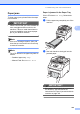
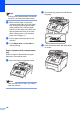


Table Of Contents
- USER’S GUIDE MFC-9120CN MFC-9320CW
- Approval Information and Compilation and Publication Notice
- Table of Contents
- Section I: General
- Section II: Fax
- Sending a fax
- How to fax
- Broadcasting (black & white only)
- Additional sending operations
- Sending faxes using multiple settings
- Electronic cover page (black & white only)
- Contrast
- Changing Fax Resolution
- Dual access (black & white only)
- Real Time Transmission
- Overseas Mode
- Delayed Fax (black & white only)
- Delayed batch transmission (black & white only)
- Checking and cancelling waiting jobs
- Sending a fax manually
- Out of memory message
- Receiving a fax
- Telephone and external devices
- Dialling and storing numbers
- Remote Fax Options (black & white only)
- Polling
- Printing reports
- Sending a fax
- Section III: Copy
- Section IV: Direct printing
- Section V: Software
- Section VI: Appendixes
- Index
- brother CHN_ENG

148
Paper is jammed inside the machine C
If the LCD shows Jam Inside, follow these
steps:
a Turn off the machine. Unplug the
telephone line cord first, disconnect all
cables, and then unplug the power cord
from the electrical socket.
b Fully open the top cover by lifting up on
the handle (1).
CAUTION
HOT SURFACE
After you have just used the machine, some
internal parts of the machine will be
extremely hot. Wait at least 10 minutes for
the machine to cool down before attempting
to clear the paper jam.
IMPORTANT
When the scanner is open, you cannot
open the top cover.
c Take out all the drum unit and toner
cartridge assemblies. Repeat this for all
the drum unit and toner cartridge
assemblies.
IMPORTANT
• We recommend that you place the drum
unit and toner cartridge assemblies on a
clean, flat surface with a sheet of
disposable paper or cloth underneath it in
case you accidentally spill or scatter toner.
• To prevent damage to the machine from
static electricity, DO NOT touch the
electrodes shown in the illustration.
1