
User Manual


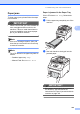
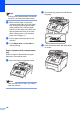


Table Of Contents
- USER’S GUIDE MFC-9120CN MFC-9320CW
- Approval Information and Compilation and Publication Notice
- Table of Contents
- Section I: General
- Section II: Fax
- Sending a fax
- How to fax
- Broadcasting (black & white only)
- Additional sending operations
- Sending faxes using multiple settings
- Electronic cover page (black & white only)
- Contrast
- Changing Fax Resolution
- Dual access (black & white only)
- Real Time Transmission
- Overseas Mode
- Delayed Fax (black & white only)
- Delayed batch transmission (black & white only)
- Checking and cancelling waiting jobs
- Sending a fax manually
- Out of memory message
- Receiving a fax
- Telephone and external devices
- Dialling and storing numbers
- Remote Fax Options (black & white only)
- Polling
- Printing reports
- Sending a fax
- Section III: Copy
- Section IV: Direct printing
- Section V: Software
- Section VI: Appendixes
- Index
- brother CHN_ENG

144
Document jams C
If the document is jammed, follow the steps
below.
IMPORTANT
After removing a jammed document,
check that no paper scraps are left in the
machine that could cause another jam.
Document is jammed in the top of the
ADF unit
C
a Take out any paper from the ADF that is
not jammed.
b Open the ADF cover.
c Pull the jammed document out to the
left.
d Close the ADF cover.
e Press Stop/Exit.
Document is jammed under the
document cover
C
a Take out any paper from the ADF that is
not jammed.
b Lift the document cover.
c Pull the jammed document out to the
right.
d Close the document cover.
e Press Stop/Exit.
Document is jammed at the output
tray
C
a Take out any paper from the ADF that is
not jammed.
b Pull the jammed document out to the
right.
c Press Stop/Exit.