
User Manual


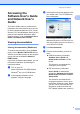
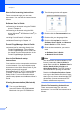
Table Of Contents
- USER’S GUIDE MFC-9120CN MFC-9320CW
- Approval Information and Compilation and Publication Notice
- Table of Contents
- Section I: General
- Section II: Fax
- Sending a fax
- How to fax
- Broadcasting (black & white only)
- Additional sending operations
- Sending faxes using multiple settings
- Electronic cover page (black & white only)
- Contrast
- Changing Fax Resolution
- Dual access (black & white only)
- Real Time Transmission
- Overseas Mode
- Delayed Fax (black & white only)
- Delayed batch transmission (black & white only)
- Checking and cancelling waiting jobs
- Sending a fax manually
- Out of memory message
- Receiving a fax
- Telephone and external devices
- Dialling and storing numbers
- Remote Fax Options (black & white only)
- Polling
- Printing reports
- Sending a fax
- Section III: Copy
- Section IV: Direct printing
- Section V: Software
- Section VI: Appendixes
- Index
- brother CHN_ENG

Chapter 1
4
How to find scanning instructions 1
There are several ways you can scan
documents. You can find the instructions as
follows:
Software User’s Guide: 1
Scanning a document using the TWAIN
driver in Chapter 2
Scanning a document using the WIA
driver (Windows
®
XP/Windows Vista
®
) in
Chapter 2
Using ControlCenter3 in Chapter 3
Network Scanning in Chapter 12
Presto! PageManager User’s Guide 1
Instructions for scanning directly from
Presto! PageManager. The complete
Presto! PageManager User’s Guide can
be viewed from the Help selection in the
Presto! PageManager application.
How to find Network setup
instructions
1
Your machine can be connected to a wireless
or wired network. You can find basic setup
instructions in the Quick Setup Guide. If your
wireless access point supports
SecureEasySetup™, Wi-Fi Protected Setup
or AOSS™, follow the steps in the Quick
Setup Guide. For more information about
network setup please see the Network User's
Guide.
Viewing documentation (Macintosh) 1
a Turn on your Macintosh.
Insert the Brother CD-ROM labelled
Macintosh into your CD-ROM drive.
b The following window will appear.
c Double-click the Documentation icon.
d Double-click your language folder.
e Double-click top.html to view the
Software User’s Guide and Network
User’s Guide in HTML format.
f Click the documentation you want to
read.
Software User’s Guide
Network User’s Guide
Note
The documents are also available in PDF
format (4 manuals): User’s Guide for
stand-alone operations, Software User’s
Guide, Network User’s Guide and
Quick Setup Guide. The PDF format is
recommended for printing the manuals.
Double-click Brother Solutions Center
icon to go to the Brother Solutions Center,
where you can view or download the PDF
documents. (Internet access and PDF
Reader software are required.)
How to find scanning instructions 1
There are several ways you can scan
documents. You can find the instructions as
follows: