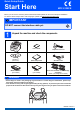
Quick Setup Guide Start Here MFC-9120CN Before you can use the machine, please read this Quick Setup Guide for the correct setup and installation. To view the Quick Setup Guide in other languages, please visit http://solutions.brother.com/. IMPORTANT DO NOT connect the interface cable yet.
Note Keep a minimum gap around the machine as shown in the illustration. 400 mm 100 mm 100 mm 120 mm Note • The components included in the box may differ depending on your country. • Save all packing materials and the box in case for any reason you must ship your machine. • The interface cable is not a standard accessory. Buy the appropriate interface cable for the interface you want to use (USB or Network). USB cable • Please make sure you use a USB 2.
Symbols used in this guide WARNING WARNINGs tell you what to do to prevent possible personal injury. CAUTION CAUTIONs specify procedures you must follow or avoid to prevent possible minor injuries. IMPORTANT IMPORTANT specifies procedures you must follow or avoid to prevent possible damage to the machine or other objects. Note Notes tell you how you should respond to a situation that may arise or give tips about how the current operation works with other features.
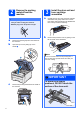
2 Remove the packing material from the machine 3 a IMPORTANT Install the drum unit and toner cartridge assemblies • Save all packing material and the carton in case you have to ship your machine. Unpack the four drum unit and toner cartridge assemblies and gently shake each of them from side to side several times to distribute the toner evenly inside the assembly. • DO NOT plug in the AC power cord yet. a b b Remove the packing tape from the outside of the machine.
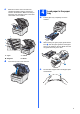
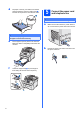
c Slide all four of the drum unit and toner cartridge assemblies into the machine as shown in the illustration. Make sure that you match the toner cartridge colour to the same colour label on the machine. a 4 Load paper in the paper tray Pull the paper tray completely out of the machine. C M b Y K C - Cyan Y - Yellow M - Magenta K - Black d While pressing the green paper-guide release lever a, slide the paper guides to fit the paper size you are loading in the tray.
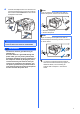
d 5 Put paper in the tray, and make sure that the paper is below the maximum paper mark a. The side to be printed on must be face down. Connect the power cord and telephone line IMPORTANT DO NOT connect the interface cable yet. a Make sure that the machine’s power switch is off. Connect the AC power cord to the machine. IMPORTANT Make sure the paper guides touch the sides of the paper so it will feed correctly. e Put the paper tray firmly back in the machine.
c Connect the telephone line cord. Connect one end of the telephone line cord to the socket on the machine marked LINE and the other end to a telephone wall socket. Note If you are sharing one telephone line with an external telephone, connect it as shown below. 1 2 1 Extension telephone 2 External telephone Note IMPORTANT If you are sharing one telephone line with an external telephone answering machine, connect it as shown below.
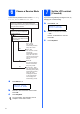
6 7 Choose a Receive Mode There are four possible receive modes: Fax Only, Fax/Tel, Manual and External TAD. Do you want to use the telephone features of your machine (if available) or an external telephone or external telephone answering device connected on the same line as the machine? Yes If you are having difficulty reading the LCD, try changing the contrast setting. a b Press b to decrease the contrast.
8 The machine displays the time, and if you set up the station ID the date and time will be added to each fax you send. a b Press Menu, 0, 2. Enter the last two digits of the year on the dial pad, and then press OK. Date&Time Year:2009 c (e.g. Enter 0, 9 for 2009.) (e.g. Enter 0, 3 for March.) a b Enter your fax number (up to 20 digits) on the dial pad, and then press OK. Station ID Fax: Enter your telephone number (up to 20 digits) on the dial pad, and then press OK.
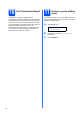
Fax Transmission Report Your Brother machine is equipped with a Transmission Verification Report that can be used as confirmation that you sent a fax. This report lists the name or fax number of the receiving party, the date, time, and duration of the transmission, the number of pages transmitted, and whether or not the transmission was successful. If you want to use the Fax Transmission Report feature see Chapter 11 Printing reports in the User’s Guide.
12 Set the telephone line type If you are connecting the machine to a line that features a PABX (PBX) or ISDN to send and receive faxes, it is also necessary to change the phone line type accordingly by completing the following steps. a Press Menu, 0, 6. Initial Setup 6.Phone Line Set b c Press a or b to choose PBX, ISDN or Normal. Press OK. f Press Stop/Exit.
13 Automatic Daylight Savings Time You can set the machine to change automatically for daylight savings time. It will reset itself forward one hour in the Spring and backward one hour in the Autumn. a Press Menu, 1, 4. General Setup 4.Auto Daylight b c 12 Press a or b to choose On (or Off). Press OK. Press Stop/Exit.
For USB Interface Users Windows®, go to page 14 Macintosh, go to page 18 Windows®, go to page 20 Macintosh, go to page 25 Note For Windows Server® 2003/ 2008, see the Network User’s Guide on the CD-ROM.
USB Windows® For USB Interface Users (Windows® 2000 Professional/XP/XP Professional x64 Edition/ Windows Vista®) 15 a Before you install Make sure that your computer is ON and you are logged on with Administrator rights. 16 a IMPORTANT Install MFL-Pro Suite Put the supplied CD-ROM into your CD-ROM drive. If the model name screen appears, choose your machine. If the language screen appears, choose your language. • DO NOT connect the USB cable yet. • If there are any programs running, close them.
USB Note Windows® g • For Windows Vista®, when the User Account Control screen appears, click Allow. Note If you want to install the PS driver (Brother’s BR-Script Driver), choose Custom Install and then follow the on-screen instructions. When the Select Features screen appears, check PS Printer Driver, and then continue following the on-screen instructions. d e f When the ScanSoft™ PaperPort™ 11SE License Agreement window appears, click Yes if you agree to the Software License Agreement.
USB 17 Connect the USB cable IMPORTANT Windows® 18 a • DO NOT connect the machine to a USB port on a keyboard or a non-powered USB hub. Connect the power cord Plug the AC power cord into an AC outlet. Turn the power switch on. • Connect the machine directly to your computer. a Remove the label covering the USB interface connector. The installation will continue automatically. The installation screens appear one after another. IMPORTANT DO NOT cancel any of the screens during the installation.
USB a Finish and restart Click Finish to restart your computer. After restarting the computer, you must be logged on with Administrator rights. Macintosh Windows® USB 19 Windows® Note If an error message appears during the software installation, run the Installation Diagnostics located in Start/All Programs/Brother/ MFC-XXXX (where MFC-XXXX is your model name). b If this screen appears, choose the firmware update setting and click OK. Note Internet access is required for the firmware upgrade.
USB Macintosh For USB Interface Users (Mac OS X 10.3.9 or greater) 15 a Before you install b Connect the USB cable to the USB connector on the machine marked with the symbol. Then connect the cable to your computer. Make sure your machine is connected to the power and your Macintosh is ON. You must be logged on with Administrator rights. IMPORTANT For the latest drivers and information on the Mac OS X you are using, visit http://solutions.brother.com/.
USB d Choose the machine from the list, and then click OK. 18 Install Presto! PageManager When Presto! PageManager is installed OCR capability is added to Brother ControlCenter2. You can easily scan, share and organize photos and documents using Presto! PageManager. a f Double-click Presto! PageManager and follow the on-screen instructions. When this screen appears, click OK. Macintosh Windows® USB e The Brother software will search for the Brother device.
Wired Network Windows® For Wired Network Interface Users (Windows® 2000 Professional/XP/XP Professional x64 Edition/ Windows Vista®) 15 a Before you install Make sure that your computer is ON and you are logged on with Administrator rights. 16 a Connect the network cable Connect the network interface cable to the LAN connector marked with a symbol and then connect it to a free port on your hub. IMPORTANT • If there are any programs running, close them.
Wired Network 18 a Windows® Note Install MFL-Pro Suite • If the installation does not continue automatically, open the main menu again by ejecting and then reinserting the CD-ROM or double-click the Start.exe program from the root folder, and continue from step c to install MFL-Pro Suite. Put the supplied CD-ROM into your CD-ROM drive. If the model name screen appears, choose your machine. If the language screen appears, choose your language.
Wired Network g Windows® Choose Wired Network Connection, and then click Next. Note • You can find your machine’s IP address and the node name by printing out the Network Configuration List. See Print the Network Configuration List on page 29. • If your machine is not found over the network, the following screen will appear. Note If you want to install the PS driver (Brother’s BR-Script Driver), choose Custom Install and then follow the on-screen instructions.
Wired Network k The installation of the Brother drivers will automatically start. The installation screens appear one after another. IMPORTANT DO NOT cancel any of the screens during the installation. It may take a few seconds for all screens to appear. Windows® 19 a Finish and restart Click Finish to restart your computer. After restarting the computer, you must be logged on with Administrator rights.
Wired Network 20 Install MFL-Pro Suite on additional computers (if needed) If you want to use your machine with multiple computers on the network, install MFL-Pro Suite on each computer. Go to step 18 on page 21. Note Network license (Windows ®) This product includes a PC license for up to 5 Users. This license supports the installation of the MFL-Pro Suite including ScanSoft™ PaperPort™ 11SE on up to 5 PCs on the network.
Wired Network Macintosh For Wired Network Interface Users (Mac OS X 10.3.9 or greater) 15 a Before you install Make sure your machine is connected to the power and your Macintosh is ON. You must be logged on with Administrator rights. 17 a Install MFL-Pro Suite Put the supplied CD-ROM into your CD-ROM drive. IMPORTANT For the latest drivers and information on the Mac OS X you are using, visit http://solutions.brother.com/. a b Double-click Start Here OSX to install.
Wired Network e If the machine is configured for your network, choose the machine from the list, and then click OK. Macintosh 18 Install Presto! PageManager When Presto! PageManager is installed OCR capability is added to Brother ControlCenter2. You can easily scan, share and organize photos and documents using Presto! PageManager. Note a Double-click Presto! PageManager and follow the on-screen instructions. If your machine is not found over the network, confirm your network settings.
For Network Users BRAdmin Light utility (for Windows® users) BRAdmin Light is a utility for initial setup of Brother network connected devices. It also can search for Brother products on your network, view the status and configure basic network settings, such as IP address. For more information on BRAdmin Light, visit us at http://solutions.brother.com/.
For Network Users BRAdmin Light utility (for Mac OS X users) BRAdmin Light is a utility for initial setup of Brother network connected devices. It also can search for Brother products on your network, view the status and configure basic network settings, such as IP address from a computer running Mac OS X 10.3.9 or greater. The BRAdmin Light software will be installed automatically when you install the printer driver.
For Network Users Web Based Management (web browser) Print the Network Configuration List The Brother print server is equipped with a web server that allows you to monitor its status or change some of its configuration settings, using HTTP (Hyper Text Transfer Protocol). You can print the Network Configuration List to confirm the current network settings. To print the Network Configuration List: Note • The User Name is ‘admin’ and the default password is ‘access’.
Options and Consumables Options The machine has the following optional accessory. You can expand the capabilities of the machine by adding this item. For more information about compatible SO-DIMM Memory, visit us at http://solutions.brother.com/. For installing the SO-DIMM Memory, see the User's Guide or visit http://solutions.brother.com/. SO-DIMM Memory You can expand the memory by installing a (144-pin SO-DIMM) memory module.
Trademarks The Brother logo is a registered trademark of Brother Industries, Ltd. Brother is a registered trademark of Brother Industries, Ltd. Multi-Function Link is a registered trademark of Brother International Corporation. Windows Vista is either a registered trademark or a trademark of Microsoft Corporation in the United States and/or other countries.