
User Manual
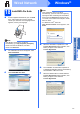
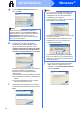
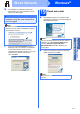
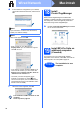
Table Of Contents
- Quick Setup Guide MFC-9120CN
- Start Here
- 1 Unpack the machine and check the components
- 2 Remove the packing material from the machine
- 3 Install the drum unit and toner cartridge assemblies
- 4 Load paper in the paper tray
- 5 Connect the power cord and telephone line
- 6 Choose a Receive Mode
- 7 Set the LCD contrast (if needed)
- 8 Set the date and time
- 9 Enter personal information (station ID)
- 10 Fax Transmission Report
- 11 Set tone or pulse dialling mode
- 12 Set the telephone line type
- 13 Automatic Daylight Savings Time
- 14 Choose your connection type
- For USB Interface Users (Windows® 2000 Professional/XP/XP Professional x64 Edition/ Windows Vista®)
- For USB Interface Users (Mac OS X 10.3.9 or greater)
- For Wired Network Interface Users (Windows® 2000 Professional/XP/XP Professional x64 Edition/ Windows Vista®)
- For Wired Network Interface Users (Mac OS X 10.3.9 or greater)
- For Network Users
- Options and Consumables
- brother SAF/GLF
- Start Here

22
Windows
®
Wired Network
g Choose Wired Network Connection, and
then click Next.
h For Windows
®
XP SP2 or greater/XP
Professional x64 Edition/ Windows Vista
®
users, when this screen appears, choose
Change the Firewall port settings to enable
network connection and continue with the
installation. (Recommended) and click Next.
If you are not using the Windows
®
Firewall, see
the User’s Guide for your software for
information on how to add the following
network ports.
For network scanning, add UDP port 54925.
For network PC-Fax receiving, add UDP port
54926.
If you still have trouble with your network
connection, add UDP port 137.
i If the machine is configured for your network,
choose the machine from the list, and then click
Next.
j If you do not want to monitor the machine
status and error notification from your
computer, uncheck Enable Status Monitor
and then click Next.
Note
If you want to install the PS driver (Brother’s
BR-Script Driver), choose Custom Install and
then follow the on-screen instructions. When the
Select Features screen appears, check
PS Printer Driver, and then continue following
the on-screen instructions.
Note
• You can find your machine’s IP address and
the node name by printing out the Network
Configuration List. See Print the Network
Configuration List on page 29.
• If your machine is not found over the network,
the following screen will appear.
Confirm your network settings by following the
on-screen instructions.
• If the IP Address of the machine is not yet
configured for use on your network, the
following screen appears.
Click OK and then Configure IP Address.
Enter an IP address for your machine that is
suitable for your network by following the on-
screen instructions.