
User Manual
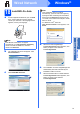
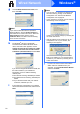
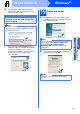
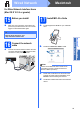
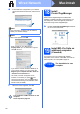
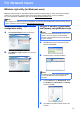
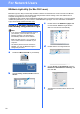
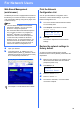
Table Of Contents
- Quick Setup Guide MFC-9120CN
- Start Here
- 1 Unpack the machine and check the components
- 2 Remove the packing material from the machine
- 3 Install the drum unit and toner cartridge assemblies
- 4 Load paper in the paper tray
- 5 Connect the power cord and telephone line
- 6 Choose a Receive Mode
- 7 Choose your language (if needed)
- 8 Set The LCD contrast (if needed)
- 9 Set the date and time
- 10 Enter personal information (station ID)
- 11 Fax Transmission Report
- 12 Set tone or pulse dialling mode
- 13 Dial Prefix
- 14 Choose your connection type
- For USB Interface Users (Windows® 2000 Professional/XP/XP Professional x64 Edition/ Windows Vista®)
- For USB Interface Users (Mac OS X 10.3.9 or greater)
- For Wired Network Interface Users (Windows® 2000 Professional/XP/XP Professional x64 Edition/ Windows Vista®)
- For Wired Network Interface Users (Mac OS X 10.3.9 or greater)
- For Network Users
- Options and Consumables
- brother CHN-ENG
- Start Here

29
For Network Users
Web Based Management
(web browser)
The Brother print server is equipped with a web server
that allows you to monitor its status or change some
of its configuration settings, using HTTP (Hyper Text
Transfer Protocol).
a Open your browser.
b Type http:// printer_ip_address /into your
browser (Where “printer_ip_address” is the IP
address of the printer or the print server name).
For example http://192.168.1.2/
Print the Network
Configuration List
You can print the Network Configuration List to
confirm the current network settings. To print the
Network Configuration List:
a Turn on the machine and wait until the machine
is in the Ready state.
b Press Reports. Press a or b to choose
Network Config.
Select ab or OK
6.Network Config
c Press OK.
The machine will print the current network
settings.
Restore the network settings to
factory default
To restore all network settings of the internal
Print/Scan server to factory default, please follow the
steps below.
a Make sure the machine is not operating, then
disconnect all the cables from the machine
(except the power cord).
b Press Menu, 5, 0.
Network
0.Network Reset
c Press 1 to choose Reset.
d Press 1 to choose Yes.
e The machine will restart, re-connect cables
once this is complete.
Note
• The User Name is ‘admin’ and the default
password is ‘access’. You can use a web
browser to change this password.
• We recommend Microsoft
®
Internet Explorer
®
6.0 (or higher) or Firefox 1.0 (or higher) for
Windows
®
and Safari 1.3 for Macintosh.
Please also make sure that JavaScript and
cookies are always enabled in whichever
browser you use. To use a web browser, you
will need to know the IP address of the print
server. The IP address of the print server is
listed on the Network Configuration List.
See Chapter 11 of the Network User’s Guide.