
User Manual

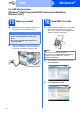
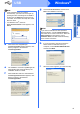

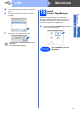
Table Of Contents
- Quick Setup Guide MFC-9120CN
- Start Here
- 1 Unpack the machine and check the components
- 2 Remove the packing material from the machine
- 3 Install the drum unit and toner cartridge assemblies
- 4 Load paper in the paper tray
- 5 Connect the power cord and telephone line
- 6 Choose a Receive Mode
- 7 Choose your language (if needed)
- 8 Set The LCD contrast (if needed)
- 9 Set the date and time
- 10 Enter personal information (station ID)
- 11 Fax Transmission Report
- 12 Set tone or pulse dialling mode
- 13 Dial Prefix
- 14 Choose your connection type
- For USB Interface Users (Windows® 2000 Professional/XP/XP Professional x64 Edition/ Windows Vista®)
- For USB Interface Users (Mac OS X 10.3.9 or greater)
- For Wired Network Interface Users (Windows® 2000 Professional/XP/XP Professional x64 Edition/ Windows Vista®)
- For Wired Network Interface Users (Mac OS X 10.3.9 or greater)
- For Network Users
- Options and Consumables
- brother CHN-ENG
- Start Here

19
Macintosh
USB
Windows
®
USB
Macintosh
d The Brother software will search for the Brother
device.
e Choose the machine from the list, and then
click OK.
f When this screen appears, click OK.
18
Install
Presto! PageManager
When Presto! PageManager is installed OCR
capability is added to Brother ControlCenter2. You
can easily scan, share and organize photos and
documents using Presto! PageManager.
a Double-click Presto! PageManager and follow
the on-screen instructions.
The installation of MFL-Pro Suite is now
complete.
Go to step 18 on page 19.
Finish
The installation is now
complete.