
User Manual
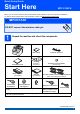
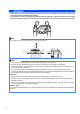
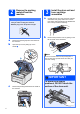
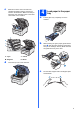
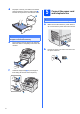
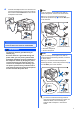
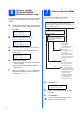
Table Of Contents
- Quick Setup Guide MFC-9120CN
- Start Here
- 1 Unpack the machine and check the components
- 2 Remove the packing material from the machine
- 3 Install the drum unit and toner cartridge assemblies
- 4 Load paper in the paper tray
- 5 Connect the power cord and telephone line
- 6 Set your country (for Australia/New Zealand customer only)
- 7 Choose a Receive Mode
- 8 Set the LCD contrast (if needed)
- 9 Set the date and time
- 10 Enter personal information (station ID)
- 11 Fax Transmission Report
- 12 Set tone or pulse dialling mode (not available for New Zealand)
- 13 Dial Prefix
- 14 Automatic Daylight Savings Time
- 15 Choose your connection type
- For USB Interface Users (Windows® 2000 Professional/XP/XP Professional x64 Edition/ Windows Vista®)
- For USB Interface Users (Mac OS X 10.3.9 or greater)
- For Wired Network Interface Users (Windows® 2000 Professional/XP/XP Professional x64 Edition/ Windows Vista®)
- For Wired Network Interface Users (Mac OS X 10.3.9 or greater)
- For Network Users
- Options and Consumables
- brother ARL/ASA/NZ
- Start Here

6
d Put paper in the tray, and make sure that the
paper is below the maximum paper mark a.
The side to be printed on must be face down.
e Put the paper tray firmly back in the machine.
Make sure that it is completely inserted into the
machine.
f Unfold the support flap a to prevent paper
from sliding off the face-down output tray.
5
Connect the power cord
and telephone line
a Make sure that the machine’s power switch is
off. Connect the AC power cord to the machine.
b Plug the AC power cord into an AC outlet. Turn
the power switch on.
IMPORTANT
Make sure the paper guides touch the sides of
the paper so it will feed correctly.
1
IMPORTANT
DO NOT connect the interface cable yet.