
User Manual

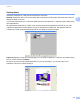


Table Of Contents
- SOFTWARE USER'S GUIDE DCP-9010CN MFC-9120CN MFC-9320CW
- Trademarks
- Table of Contents
- Windows®
- 1 Printing
- Using the Brother printer driver
- Printing a document
- Duplex printing
- Simultaneous scanning, printing and faxing
- Printer operation keys
- Status Monitor
- Printer driver settings
- Features in the Windows® printer driver
- Basic tab
- Advanced tab
- Tray Settings tab
- Support
- Features in the BR-Script (PostScript® 3™ language emulation) printer driver
- 2 Scanning
- Scanning a document using the TWAIN driver
- Scanning a document using the WIA driver (Windows® XP/Windows Vista®/Windows® 7)
- Scanning a document using the WIA driver (Windows Photo Gallery and Windows Fax and Scan)
- Using ScanSoft™ PaperPort™ 11SE with OCR by NUANCE™
- 3 ControlCenter3
- 4 Remote Setup (MFC-9120CN and MFC-9320CW only)
- 5 Brother PC-FAX Software (MFC-9120CN and MFC-9320CW only)
- 6 Firewall settings (For Network users)
- 1 Printing
- Apple Macintosh
- 7 Printing and Faxing
- Printer operation key
- Status Monitor
- Features in the printer driver (Macintosh)
- Removing the Printer driver for Macintosh
- Using the BR-Script3 Driver (PostScript® 3™ language emulation printer driver)
- Features in the BR-Script 3 (PostScript® 3™ language emulation) printer driver
- Sending a fax (MFC-9120CN and MFC-9320CW only)
- 8 Scanning
- 9 ControlCenter2
- 10 Remote Setup
- 7 Printing and Faxing
- Using The Scan key
- 11 Scanning (For USB cable users)
- 12 Network Scanning
- Index

Scanning
55
2
Viewing items 2
ScanSoft™ PaperPort™ 11SE gives several ways to view items:
Desktop displays the item in the chosen folder with a thumbnail (a small graphic that shows each item in a
desktop or folder) or an icon.
You can see both PaperPort™ 11SE items (MAX files) and non-PaperPort™ 11SE items (files created using
other applications).
All graphical files (PaperPort™ 11SE's *.max and other files) will be displayed and include an icon that
indicates the application that the specific file type is associated or created with. Non-graphical files are
indicated by a small rectangular thumbnail and are not displayed as actual images.
Page View displays a close-up of a single page. You can open a PaperPort™ 11SE item by double-clicking
its icon or the thumbnail in Desktop.
As long as you have the appropriate application on your PC to display it, you can also open a non-
PaperPort™ SE item by double-clicking it.