
User Manual
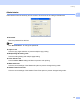


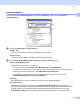
Table Of Contents
- SOFTWARE USER’S GUIDE DCP-9010CN MFC-9120CN MFC-9320CW
- Trademarks
- Table of Contents
- Windows®
- 1 Printing
- Using the Brother printer driver
- Printing a document
- Duplex printing
- Simultaneous scanning, printing and faxing
- Printer operation keys
- Status Monitor
- Printer driver settings
- Features in the Windows® printer driver
- Basic tab
- Advanced tab
- Tray Settings tab
- Support
- Features in the BR-Script (PostScript® 3™ language emulation) printer driver
- 2 Scanning
- 3 ControlCenter3
- 4 Remote Setup (MFC-9120CN and MFC-9320CW only)
- 5 Brother PC-FAX Software (MFC-9120CN and MFC-9320CW only)
- 6 Firewall settings (For Network users)
- 1 Printing
- Apple Macintosh
- 7 Printing and Faxing
- Printer operation key
- Status Monitor
- Features in the printer driver (Macintosh)
- Removing the Printer driver for Macintosh
- Using the BR-Script3 Driver (PostScript® 3™ language emulation printer driver)
- Features in the BR-Script 3 (PostScript® 3™ language emulation) printer driver
- Sending a fax (MFC-9120CN and MFC-9320CW only)
- 8 Scanning
- 9 ControlCenter2
- 10 Remote Setup
- 7 Printing and Faxing
- Using The Scan key
- 11 Scanning (For USB cable users)
- 12 Network Scanning
- Index

Printing
32
1
Advanced options 1
You can access the Advanced options by clicking the Advanced... button on the Layout tab or
Paper/Quality tab.
a Choose the Paper Size and Copy Count (1).
Paper Size
From the drop-down box choose the Paper Size you are using.
Copy Count
The copy selection sets the number of copies that will be printed.
b Set the Image Color Management, Scaling and TrueType Font settings (2).
Image Color Management
Specifies how to print your color graphics.
• If you don’t want to enable Image Color Management, click ICM Disabled.
• If you want the calculations for color matching to be performed on the host computer before it
sends the document to the printer, click ICM Handled by Host System.
• If you want the calculations for color matching to be performed on your printer, click
ICM Handled by Printer using printer calibration.
Scaling
Specifies whether to reduce or enlarge documents, and by what percentage.
TrueType Font
Specifies the TrueType font options. Click Substitute with Device Font (the default) to use
equivalent printer fonts for printing documents that contain TrueType fonts. This will permit faster
printing; however, you might lose special characters not supported by the printer font. Click
Download as Softfont to download TrueType fonts for printing instead of using printer fonts.
(1)
(2)