
User Manual
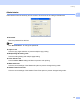


Table Of Contents
- SOFTWARE USER’S GUIDE DCP-9010CN MFC-9120CN MFC-9320CW
- Trademarks
- Table of Contents
- Windows®
- 1 Printing
- Using the Brother printer driver
- Printing a document
- Duplex printing
- Simultaneous scanning, printing and faxing
- Printer operation keys
- Status Monitor
- Printer driver settings
- Features in the Windows® printer driver
- Basic tab
- Advanced tab
- Tray Settings tab
- Support
- Features in the BR-Script (PostScript® 3™ language emulation) printer driver
- 2 Scanning
- 3 ControlCenter3
- 4 Remote Setup (MFC-9120CN and MFC-9320CW only)
- 5 Brother PC-FAX Software (MFC-9120CN and MFC-9320CW only)
- 6 Firewall settings (For Network users)
- 1 Printing
- Apple Macintosh
- 7 Printing and Faxing
- Printer operation key
- Status Monitor
- Features in the printer driver (Macintosh)
- Removing the Printer driver for Macintosh
- Using the BR-Script3 Driver (PostScript® 3™ language emulation printer driver)
- Features in the BR-Script 3 (PostScript® 3™ language emulation) printer driver
- Sending a fax (MFC-9120CN and MFC-9320CW only)
- 8 Scanning
- 9 ControlCenter2
- 10 Remote Setup
- 7 Printing and Faxing
- Using The Scan key
- 11 Scanning (For USB cable users)
- 12 Network Scanning
- Index

Printing
25
1
User Authentication (MFC-9320CW only) 1
If you are restricted from PC Print by Secure Function Lock 2.0 feature, you need to set your ID and PIN in
the User Authentication dialog. Click Settings of the User Authentication and enter your ID and PIN. If
your PC login name is registered to Secure Function Lock 2.0, you can check the Use PC Login Name box
instead of entering your ID and PIN.
For more information about Secure Function Lock 2.0, see the Network User’s Guide on the CD-ROM we
have supplied.
Note
• If you want to see the information for your ID such as the status of a restricted feature and the number of
remaining pages you are allowed to print, click Verify. The Authentication result dialog will appear.
• If you want to make the Authentication result dialog appear each time you print, check the
Show print status before printing.
• If you want to enter your ID and PIN each time you print, check the
Enter ID Name/PIN for each print job.
Other Print Options 1
You can set the following in Printer Function:
Color Calibration
Improve Print Output
Color Calibration 1
The output density of each color may vary depending on the temperature and humidity of the environment
the printer is in. This setting helps you to improve color density by letting the printer driver use the color
calibration data stored in your printer.
Use Calibration Data
If the printer driver successfully gets the calibration data, the printer driver will automatically check this box.
Remove the check mark if you do not want to use the data.
Start Color Calibration
If you click this button, your machine will start color calibration and then the printer driver will attempt to
get the calibration data from your printer.
Note
If you print by using the Direct Print feature, PictBridge feature or BR-Script printer driver, you need to
perform the calibration from the control panel. See User’s Guide for more information.