
User Manual
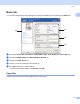

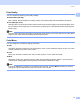
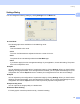
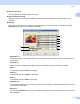


Table Of Contents
- SOFTWARE USER’S GUIDE DCP-9010CN MFC-9120CN MFC-9320CW
- Trademarks
- Table of Contents
- Windows®
- 1 Printing
- Using the Brother printer driver
- Printing a document
- Duplex printing
- Simultaneous scanning, printing and faxing
- Printer operation keys
- Status Monitor
- Printer driver settings
- Features in the Windows® printer driver
- Basic tab
- Advanced tab
- Tray Settings tab
- Support
- Features in the BR-Script (PostScript® 3™ language emulation) printer driver
- 2 Scanning
- 3 ControlCenter3
- 4 Remote Setup (MFC-9120CN and MFC-9320CW only)
- 5 Brother PC-FAX Software (MFC-9120CN and MFC-9320CW only)
- 6 Firewall settings (For Network users)
- 1 Printing
- Apple Macintosh
- 7 Printing and Faxing
- Printer operation key
- Status Monitor
- Features in the printer driver (Macintosh)
- Removing the Printer driver for Macintosh
- Using the BR-Script3 Driver (PostScript® 3™ language emulation printer driver)
- Features in the BR-Script 3 (PostScript® 3™ language emulation) printer driver
- Sending a fax (MFC-9120CN and MFC-9320CW only)
- 8 Scanning
- 9 ControlCenter2
- 10 Remote Setup
- 7 Printing and Faxing
- Using The Scan key
- 11 Scanning (For USB cable users)
- 12 Network Scanning
- Index

Printing
17
1
Improve Thin Line
You can improve the image quality of thin lines.
Improve Pattern Printing
Select this option if printed fills and patterns are different from the patterns and fills you see on your
computer.
Settings
If you want to change the color settings such as brightness, contrast, intensity or saturation, click the
Settings button to access more advanced settings.
• Brightness (1)
Moving the scroll bar to the right makes your image lighter and moving the scroll bar left makes your
image darker.
• Contrast (2)
Darker sections are darker while lighter sections will be lighter as you increase the contrast.
• Red (3)
Increase the intensity of Red in the image.
• Green (4)
Increase the intensity of Green in the image.
• Blue (5)
Increase the intensity of Blue in the image.
• Saturation (6)
Increase the saturation when you wish to print a more vivid image or decrease the saturation you want
to print a less vivid image.
• Browse (7)
By clicking the Browse button, you can change the image shown in the preview window. The file must
be a bitmap file.
(1)
(2)
(4)
(3)
(5)
(6)
(7)
(8)