
User Manual
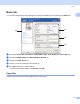

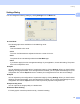
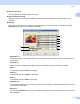


Table Of Contents
- SOFTWARE USER’S GUIDE DCP-9010CN MFC-9120CN MFC-9320CW
- Trademarks
- Table of Contents
- Windows®
- 1 Printing
- Using the Brother printer driver
- Printing a document
- Duplex printing
- Simultaneous scanning, printing and faxing
- Printer operation keys
- Status Monitor
- Printer driver settings
- Features in the Windows® printer driver
- Basic tab
- Advanced tab
- Tray Settings tab
- Support
- Features in the BR-Script (PostScript® 3™ language emulation) printer driver
- 2 Scanning
- 3 ControlCenter3
- 4 Remote Setup (MFC-9120CN and MFC-9320CW only)
- 5 Brother PC-FAX Software (MFC-9120CN and MFC-9320CW only)
- 6 Firewall settings (For Network users)
- 1 Printing
- Apple Macintosh
- 7 Printing and Faxing
- Printer operation key
- Status Monitor
- Features in the printer driver (Macintosh)
- Removing the Printer driver for Macintosh
- Using the BR-Script3 Driver (PostScript® 3™ language emulation printer driver)
- Features in the BR-Script 3 (PostScript® 3™ language emulation) printer driver
- Sending a fax (MFC-9120CN and MFC-9320CW only)
- 8 Scanning
- 9 ControlCenter2
- 10 Remote Setup
- 7 Printing and Faxing
- Using The Scan key
- 11 Scanning (For USB cable users)
- 12 Network Scanning
- Index

Printing
16
1
Settings Dialog 1
You can change the following setting by clicking Settings from the Basic tab.
Color Mode
The following options are available in Color Matching mode:
• Normal
This is the default color mode.
• Vivid
The color of all elements are adjusted to become a more vivid color.
• Auto
The printer driver automatically selects the Color Mode type.
• None
If you want to apply the color management settings of your application, choose this setting. The printer
driver will not adjust the color.
Import
You can adjust the print configuration of a particular image by clicking Settings. When you have finished
adjusting the image parameters, such as brightness and contrast, you can import those settings as a print
configuration file. Use the Export function to create a print configuration file from the current settings.
Export
You can adjust the print configuration of a particular image by clicking Settings. When you have finished
adjusting the image parameters, such as brightness and contrast, you can export those settings as a print
configuration file. Use the Import function to load a previously exported configuration file.
Improve Grey Color
You can improve the image quality of a shaded area.
Enhance Black Printing
If a black graphic cannot be printed correctly, choose this setting.