
User Manual

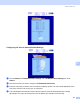

Table Of Contents
- SOFTWARE USER’S GUIDE DCP-9010CN MFC-9120CN MFC-9320CW
- Trademarks
- Table of Contents
- Windows®
- 1 Printing
- Using the Brother printer driver
- Printing a document
- Duplex printing
- Simultaneous scanning, printing and faxing
- Printer operation keys
- Status Monitor
- Printer driver settings
- Features in the Windows® printer driver
- Basic tab
- Advanced tab
- Tray Settings tab
- Support
- Features in the BR-Script (PostScript® 3™ language emulation) printer driver
- 2 Scanning
- 3 ControlCenter3
- 4 Remote Setup (MFC-9120CN and MFC-9320CW only)
- 5 Brother PC-FAX Software (MFC-9120CN and MFC-9320CW only)
- 6 Firewall settings (For Network users)
- 1 Printing
- Apple Macintosh
- 7 Printing and Faxing
- Printer operation key
- Status Monitor
- Features in the printer driver (Macintosh)
- Removing the Printer driver for Macintosh
- Using the BR-Script3 Driver (PostScript® 3™ language emulation printer driver)
- Features in the BR-Script 3 (PostScript® 3™ language emulation) printer driver
- Sending a fax (MFC-9120CN and MFC-9320CW only)
- 8 Scanning
- 9 ControlCenter2
- 10 Remote Setup
- 7 Printing and Faxing
- Using The Scan key
- 11 Scanning (For USB cable users)
- 12 Network Scanning
- Index

Network Scanning
198
12
e Enter the destination folder where your document will be stored on the CIFS server (for example
/brother/abc/) (up to 60 characters).
f Choose the file name you want to use for the scanned document. You can choose from seven preset
and two user defined File Names. The file name that will be used for your document will be the file name
you selected plus the last 6 digits of the flatbed/ADF scanner counter plus the file extension (For
example, Estimate098765.pdf). You can also manually enter a File Name up to 32 characters.
g Choose the scan quality from the drop-down list. You can choose Color 100, Color 200, Color 300,
Color 600, BW 200, BW 200x100, Gray 100, Gray 200 or Gray 300.
h Choose the file type for the document from the drop-down list. You can choose PDF, Secure PDF, XPS
or JPEG for color or grey scale documents and PDF, Secure PDF or TIFF for B/W document.
i If you want to protect the profile, check Use PIN for authentication and enter a 4-digit PIN number in
PIN Code.
j Choose the authentication method. You can choose Auto, Kerberos or NTLMv2.
If you choose Auto the authentication method will be detected automatically.
k Enter the Username that has been registered with the CIFS server for the machine (up to 32 characters).
l Enter the Password for access to the CIFS server (up to 32 characters).
m If you want to set Kerberos Server Address manually, enter the Kerberos Server Address (for example
/brother/abc/) (up to 60 characters).
Scan to Network using Scan to Network Profiles 12
a Load your document.
b Press (Scan).
c Press a or b to choose Scan to Network. Press OK.
d Press a or b to choose one of the profiles listed. Press OK.
e If you check Use PIN for authentication in FTP/Network Scan Profile of Web Based Management,
the LCD will prompts you to enter a PIN number. Enter the 4-digit PIN number and then press OK.
If the profile is complete, you will automatically go to step i.
If the profile is not complete, for instance, the quality or file type are not chosen, you will be prompted
to enter any missing information in the following steps.
f Choose one of the options below:
Press a or b to choose Color 100 dpi, Color 200 dpi, Color 300 dpi, Color 600 dpi,
Gray 100 dpi, Gray 200 dpi or Gray 300 dpi. Press OK and go to step g.
Press a or b to choose B&W 200 dpi or B&W 200x100 dpi. Press OK and go to step h.
g Press a or b to choose PDF, Secure PDF, JPEG or XPS.
Press OK, and go to step i.