
User Manual

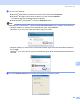
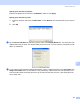

Table Of Contents
- SOFTWARE USER’S GUIDE DCP-9010CN MFC-9120CN MFC-9320CW
- Trademarks
- Table of Contents
- Windows®
- 1 Printing
- Using the Brother printer driver
- Printing a document
- Duplex printing
- Simultaneous scanning, printing and faxing
- Printer operation keys
- Status Monitor
- Printer driver settings
- Features in the Windows® printer driver
- Basic tab
- Advanced tab
- Tray Settings tab
- Support
- Features in the BR-Script (PostScript® 3™ language emulation) printer driver
- 2 Scanning
- 3 ControlCenter3
- 4 Remote Setup (MFC-9120CN and MFC-9320CW only)
- 5 Brother PC-FAX Software (MFC-9120CN and MFC-9320CW only)
- 6 Firewall settings (For Network users)
- 1 Printing
- Apple Macintosh
- 7 Printing and Faxing
- Printer operation key
- Status Monitor
- Features in the printer driver (Macintosh)
- Removing the Printer driver for Macintosh
- Using the BR-Script3 Driver (PostScript® 3™ language emulation printer driver)
- Features in the BR-Script 3 (PostScript® 3™ language emulation) printer driver
- Sending a fax (MFC-9120CN and MFC-9320CW only)
- 8 Scanning
- 9 ControlCenter2
- 10 Remote Setup
- 7 Printing and Faxing
- Using The Scan key
- 11 Scanning (For USB cable users)
- 12 Network Scanning
- Index

Network Scanning
188
12
Configuring Network Scanning (For Macintosh) 12
a From Library, choose Printers, Brother, Utilities and DeviceSelector, and then double-click
Device Selector.
The Device Selector window appears. This window can also be opened from ControlCenter2.
For more information, see Using ControlCenter2 on page 156.
b Specify your machine by IP address or mDNS service Name. To change the IP address, enter the new
IP address. You can also choose a machine from the list of the available machines. Click Browse to
show the list.
c Click OK.
Note
• To use ‘Scan To’ button features on the machine, click the check box for
Register your computer with the "Scan To" functions at the machine. Then enter the name you
want to be displayed on the machines LCD for your Macintosh. You can use up to 15 characters.
• You can avoid receiving unwanted documents by setting a 4-digit PIN number. Enter your PIN number in
the PIN number and Retype PIN number field. To send data to a computer protected by a PIN number,
the LCD prompts you to enter the PIN number before the document can be scanned and sent to the
machine. (See Using the Scan key on page 189.)