
User Manual




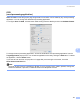
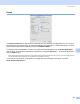
Table Of Contents
- SOFTWARE USER’S GUIDE DCP-9010CN MFC-9120CN MFC-9320CW
- Trademarks
- Table of Contents
- Windows®
- 1 Printing
- Using the Brother printer driver
- Printing a document
- Duplex printing
- Simultaneous scanning, printing and faxing
- Printer operation keys
- Status Monitor
- Printer driver settings
- Features in the Windows® printer driver
- Basic tab
- Advanced tab
- Tray Settings tab
- Support
- Features in the BR-Script (PostScript® 3™ language emulation) printer driver
- 2 Scanning
- 3 ControlCenter3
- 4 Remote Setup (MFC-9120CN and MFC-9320CW only)
- 5 Brother PC-FAX Software (MFC-9120CN and MFC-9320CW only)
- 6 Firewall settings (For Network users)
- 1 Printing
- Apple Macintosh
- 7 Printing and Faxing
- Printer operation key
- Status Monitor
- Features in the printer driver (Macintosh)
- Removing the Printer driver for Macintosh
- Using the BR-Script3 Driver (PostScript® 3™ language emulation printer driver)
- Features in the BR-Script 3 (PostScript® 3™ language emulation) printer driver
- Sending a fax (MFC-9120CN and MFC-9320CW only)
- 8 Scanning
- 9 ControlCenter2
- 10 Remote Setup
- 7 Printing and Faxing
- Using The Scan key
- 11 Scanning (For USB cable users)
- 12 Network Scanning
- Index

ControlCenter2
159
9
File types 9
You can choose from the following list of file types for attachments or for saving to a folder.
Choose from the pop-up menu the type of file you want the scanned images to be saved in.
Windows Bitmap (*.bmp)
JPEG (*.jpg)
TIFF (*.tif)
TIFF Multi-Page (*.tif)
Portable Network Graphics (*.png)
PDF (*.pdf)
Secure PDF (*.pdf)
Note
• If you set the file type to TIFF or TIFF Multi-Page, you can choose “Uncompressed” or “Compressed”.
• Secure PDF is available for Scan to Image, Scan to E-mail and Scan to File.
Document Size 9
You can choose the document size from the pull-down list. If you choose a 1 to 2 document size, such as 1
to 2 (A4), the scanned image will be divided into two A5 size documents.
Image
(example: Apple Preview) 9
The Scan To Image feature lets you scan an image directly into your graphics application for image editing.
To change the default settings, click the button while holding down the Ctrl key and choose Software Button.