
User Manual
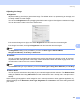




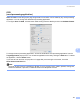
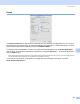
Table Of Contents
- SOFTWARE USER’S GUIDE DCP-9010CN MFC-9120CN MFC-9320CW
- Trademarks
- Table of Contents
- Windows®
- 1 Printing
- Using the Brother printer driver
- Printing a document
- Duplex printing
- Simultaneous scanning, printing and faxing
- Printer operation keys
- Status Monitor
- Printer driver settings
- Features in the Windows® printer driver
- Basic tab
- Advanced tab
- Tray Settings tab
- Support
- Features in the BR-Script (PostScript® 3™ language emulation) printer driver
- 2 Scanning
- 3 ControlCenter3
- 4 Remote Setup (MFC-9120CN and MFC-9320CW only)
- 5 Brother PC-FAX Software (MFC-9120CN and MFC-9320CW only)
- 6 Firewall settings (For Network users)
- 1 Printing
- Apple Macintosh
- 7 Printing and Faxing
- Printer operation key
- Status Monitor
- Features in the printer driver (Macintosh)
- Removing the Printer driver for Macintosh
- Using the BR-Script3 Driver (PostScript® 3™ language emulation printer driver)
- Features in the BR-Script 3 (PostScript® 3™ language emulation) printer driver
- Sending a fax (MFC-9120CN and MFC-9320CW only)
- 8 Scanning
- 9 ControlCenter2
- 10 Remote Setup
- 7 Printing and Faxing
- Using The Scan key
- 11 Scanning (For USB cable users)
- 12 Network Scanning
- Index

Scanning
154
8
Adjusting the Image 8
Brightness
Adjust the setting (-50 to 50) to get the best image. The default value is 0, representing an average, and
is usually suitable for most images.
You can set the Brightness level by dragging the slide bar to the right or left to lighten or darken the image.
You can also enter a value in the box to set the level.
If the scanned image is too light, set a lower Brightness level and scan the document again.
If the image is too dark, set a higher Brightness level and scan the document again.
Note
The Brightness setting is only available if you have set Scan Type to Black & White,
Gray (Error Diffusion), True Gray or 24bit Color.
Contrast
You can increase or decrease the contrast level by moving the slide bar to the left or right. An increase
emphasizes dark and light areas of the image, while a decrease reveals more detail in grey areas. You
can also enter a value in the box to set the Contrast.
Note
The Contrast setting is only available if you have set Scan Type to Grey (Error Diffusion) or True Grey.
Reduce Noise
You can improve and enhance the quality of your scanned images with this selection. The Reduce Noise
setting is available when using 24bit Color and scan resolutions of 300 300 dpi, 400 400 dpi or 600
600 dpi.
When scanning photographs or other images for use in a word processor or other graphics application, try
different settings for the Resolution, Scan Type, Brightness and Contrast to see which setting best suits
your needs.