
User Manual
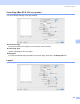
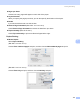
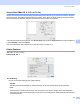
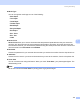
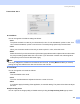

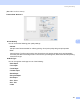
Table Of Contents
- SOFTWARE USER’S GUIDE DCP-9010CN MFC-9120CN MFC-9320CW
- Trademarks
- Table of Contents
- Windows®
- 1 Printing
- Using the Brother printer driver
- Printing a document
- Duplex printing
- Simultaneous scanning, printing and faxing
- Printer operation keys
- Status Monitor
- Printer driver settings
- Features in the Windows® printer driver
- Basic tab
- Advanced tab
- Tray Settings tab
- Support
- Features in the BR-Script (PostScript® 3™ language emulation) printer driver
- 2 Scanning
- 3 ControlCenter3
- 4 Remote Setup (MFC-9120CN and MFC-9320CW only)
- 5 Brother PC-FAX Software (MFC-9120CN and MFC-9320CW only)
- 6 Firewall settings (For Network users)
- 1 Printing
- Apple Macintosh
- 7 Printing and Faxing
- Printer operation key
- Status Monitor
- Features in the printer driver (Macintosh)
- Removing the Printer driver for Macintosh
- Using the BR-Script3 Driver (PostScript® 3™ language emulation printer driver)
- Features in the BR-Script 3 (PostScript® 3™ language emulation) printer driver
- Sending a fax (MFC-9120CN and MFC-9320CW only)
- 8 Scanning
- 9 ControlCenter2
- 10 Remote Setup
- 7 Printing and Faxing
- Using The Scan key
- 11 Scanning (For USB cable users)
- 12 Network Scanning
- Index

Printing and Faxing
137
7
Secure Print (Mac OS X 10.5.x to 10.6.x) 7
Secure documents are documents that are password protected when they are sent to the machine. Only the
people who know the password will be able to print them. Since the documents are secured at the machine,
you must enter the password using the control panel of the machine to print them.
If you want to create a secure print job, click Secure Print and check the Secure Print box. Enter a password
in the Password box and click Print.
(For more information about Secure Print, See Secure Key on page 111.)
Printer Features 7
(Mac OS X 10.3.9 to 10.4.x)
Feature Sets: Set 1
Print Quality
You can choose the following print quality settings.
• Normal
600 dpi class. Recommended for ordinary printing. Good print quality with good print speeds.
• Fine
2400 dpi class. The finest print mode. Use this mode to print precise images such as photographs.
Since the print data is much larger than in normal mode, processing time, data transfer time and printing
time will be longer.