
User Manual
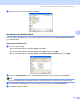
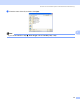

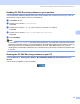
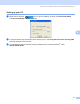
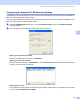
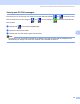

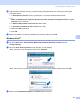
Table Of Contents
- SOFTWARE USER’S GUIDE DCP-9010CN MFC-9120CN MFC-9320CW
- Trademarks
- Table of Contents
- Windows®
- 1 Printing
- Using the Brother printer driver
- Printing a document
- Duplex printing
- Simultaneous scanning, printing and faxing
- Printer operation keys
- Status Monitor
- Printer driver settings
- Features in the Windows® printer driver
- Basic tab
- Advanced tab
- Tray Settings tab
- Support
- Features in the BR-Script (PostScript® 3™ language emulation) printer driver
- 2 Scanning
- 3 ControlCenter3
- 4 Remote Setup (MFC-9120CN and MFC-9320CW only)
- 5 Brother PC-FAX Software (MFC-9120CN and MFC-9320CW only)
- 6 Firewall settings (For Network users)
- 1 Printing
- Apple Macintosh
- 7 Printing and Faxing
- Printer operation key
- Status Monitor
- Features in the printer driver (Macintosh)
- Removing the Printer driver for Macintosh
- Using the BR-Script3 Driver (PostScript® 3™ language emulation printer driver)
- Features in the BR-Script 3 (PostScript® 3™ language emulation) printer driver
- Sending a fax (MFC-9120CN and MFC-9320CW only)
- 8 Scanning
- 9 ControlCenter2
- 10 Remote Setup
- 7 Printing and Faxing
- Using The Scan key
- 11 Scanning (For USB cable users)
- 12 Network Scanning
- Index

100
6
6
Before using the Brother software 6
Firewall settings on your PC may reject the necessary network connection for network printing, network
scanning and PC Fax. If you are using the Windows
®
Firewall and you installed MFL-Pro Suite from the
CD-ROM, the necessary Firewall settings have already been made. If you did not install from the CD-ROM
follow the instructions below to configure your Windows
®
Firewall. If you are using any other personal Firewall
software, see the User’s Guide for your software or contact the software manufacturer.
UDP Port number information for Firewall configuration
1
Add Port number 137 if you still have trouble with your network connection after you added port 54925 and 54926. Port number 137 also supports
printing and Remote Setup over the network.
Windows
®
XP SP2 or greater 6
a Click the Start button, Control Panel, Network and Internet Connections and then
Windows Firewall.
Make sure that Windows Firewall on the General tab is set to On.
b Click the Advanced tab and Settings... button of Network Connection Settings.
c Click the Add button.
Firewall settings (For Network users) 6
UDP Port Network Scanning Network PC-Fax Network Scanning and
Network PC-Fax
1
External Port number 54925 54926 137
Internal Port number 54925 54926 137