
User`s guide


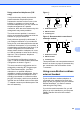

Table Of Contents
- USER’S GUIDE MFC-9120CN MFC-9320CW
- Approval Information and Compilation and Publication Notice
- EC Declaration of Conformity
- Table of Contents
- Section I: General
- 1 General information
- Using the documentation
- Accessing the Software User’s Guide and Network User’s Guide
- Viewing documentation
- Viewing documentation (Windows®)
- How to find scanning instructions
- Software User’s Guide:
- ScanSoft™ PaperPort™ 11SE with OCR How-to-Guides:
- How to find Network setup instructions
- Viewing documentation (Macintosh)
- How to find scanning instructions
- Software User’s Guide:
- Presto! PageManager User’s Guide:
- How to find Network setup instructions
- Viewing documentation
- Accessing Brother Support (For Windows®)
- Control panel overview
- 2 Loading paper and documents
- 3 General Setup
- 4 Security features
- 1 General information
- Section II: Fax
- 5 Sending a fax
- How to fax
- Broadcasting (black & white only)
- Additional sending operations
- Sending faxes using multiple settings
- Electronic cover page (black & white only)
- Contrast
- Changing Fax Resolution
- Dual access (black & white only)
- Real Time Transmission
- Overseas Mode
- Delayed Fax (black & white only)
- Delayed batch transmission (black & white only)
- Checking and cancelling waiting jobs
- Sending a fax manually
- Out of memory message
- 6 Receiving a fax
- 7 Telephone and external devices
- 8 Dialling and storing numbers
- 9 Remote Fax Options (black & white only)
- 10 Polling
- 11 Printing reports
- 5 Sending a fax
- Section III: Copy
- Section IV: Direct printing
- Section V: Software
- Section VI: Appendixes
- A Safety and legal
- B Options
- C Troubleshooting and routine maintenance
- Troubleshooting
- Error and maintenance messages
- Routine maintenance
- Replacing the consumable items
- Replacing periodic maintenance parts
- Machine Information
- Packing and shipping the machine
- D Menu and features
- E Specifications
- F Glossary
- Index
- brother UK/IRE

Telephone and external devices
55
7
Using extension telephones (U.K.
only)
7
Your premises may already be wired with
parallel extension telephones (those
connected to sockets in other rooms in the
building), or perhaps you intend to add
extension telephones to your line. While the
simplest arrangement is a parallel
connection, there are some reasons why this
arrangement may cause problems.
The most common problem, is someone
picking up an extension telephone while the
machine is trying to send a fax.
Such problems can easily be eliminated, if
you arrange modification of your extension
wiring circuit, such that extension devices are
connected “downstream” of your machine, in
a master/slave configuration (see figure 2). In
such a configuration, this machine can
always detect whether a telephone is in use,
so it will not attempt to seize the line during
that time. This is known as “telephone
off-hook detection”.
The inadvisable configuration is shown in
figure 1, and the recommended master/slave
configuration is shown in figure 2.
This new connection configuration can be
arranged by contacting BT, Kingston upon
Hull Telecommunications, your PBX
maintainer or a qualified telephone
installation company as appropriate. Simply
explained, the extension telephone circuit
should be terminated on a normal modular
plug (BT 431A style), which in turn should be
inserted into the modular socket of the white
“T”-shaped connector provided as part of the
line cord assembly.
Figure 1:
7
1 Extension socket
2 Master socket
3 Incoming line
Figure 2: Recommended connection of
extension sockets
7
1 Extension socket
2 Master socket
3 Incoming line
These phones are now connected as external
devices as shown on page 54, because they
are connected to the fax machine via the
T-connector.
Using a non-Brother cordless
external handset 7
If your non-Brother cordless telephone is
connected to the telephone line cord (see
page 54) and you typically carry the cordless
handset elsewhere, it is easier to answer
calls during the Ring Delay.
If you let the machine answer first, you will
have to go to the machine so you can press
Tel/R to transfer the call to the cordless
handset.
FAX
12
3
1
FAX
12
3
1