
User`s guide
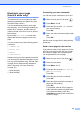

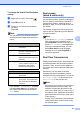

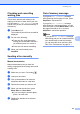


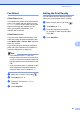

Table Of Contents
- USER’S GUIDE MFC-9120CN MFC-9320CW
- Approval Information and Compilation and Publication Notice
- EC Declaration of Conformity
- Table of Contents
- Section I: General
- 1 General information
- Using the documentation
- Accessing the Software User’s Guide and Network User’s Guide
- Viewing documentation
- Viewing documentation (Windows®)
- How to find scanning instructions
- Software User’s Guide:
- ScanSoft™ PaperPort™ 11SE with OCR How-to-Guides:
- How to find Network setup instructions
- Viewing documentation (Macintosh)
- How to find scanning instructions
- Software User’s Guide:
- Presto! PageManager User’s Guide:
- How to find Network setup instructions
- Viewing documentation
- Accessing Brother Support (For Windows®)
- Control panel overview
- 2 Loading paper and documents
- 3 General Setup
- 4 Security features
- 1 General information
- Section II: Fax
- 5 Sending a fax
- How to fax
- Broadcasting (black & white only)
- Additional sending operations
- Sending faxes using multiple settings
- Electronic cover page (black & white only)
- Contrast
- Changing Fax Resolution
- Dual access (black & white only)
- Real Time Transmission
- Overseas Mode
- Delayed Fax (black & white only)
- Delayed batch transmission (black & white only)
- Checking and cancelling waiting jobs
- Sending a fax manually
- Out of memory message
- 6 Receiving a fax
- 7 Telephone and external devices
- 8 Dialling and storing numbers
- 9 Remote Fax Options (black & white only)
- 10 Polling
- 11 Printing reports
- 5 Sending a fax
- Section III: Copy
- Section IV: Direct printing
- Section V: Software
- Section VI: Appendixes
- A Safety and legal
- B Options
- C Troubleshooting and routine maintenance
- Troubleshooting
- Error and maintenance messages
- Routine maintenance
- Replacing the consumable items
- Replacing periodic maintenance parts
- Machine Information
- Packing and shipping the machine
- D Menu and features
- E Specifications
- F Glossary
- Index
- brother UK/IRE

Receiving a fax
47
6
Fax Detect 6
If Fax Detect is On: 6
The machine can receive a fax automatically,
even if you answer the call. When you see
Receiving on the LCD or hear a click on the
phone line through the handset you are
using, just replace the handset. Your
machine will do the rest.
If Fax Detect is Off: 6
If you are at the machine and answer a fax
call first by lifting the external handset, then
press Mono Start or Colour Start, and then
press 2 to receive.
If you answered at an extension telephone
press l51. (See Operation from external or
extension telephones on page 54.)
Note
• If this feature is set to On, but your
machine does not connect a fax call when
you lift an external or extension telephone
handset, press the remote activation code
l51.
• If you send faxes from a computer on the
same telephone line and the machine
intercepts them, set Fax Detect to Off.
a Make sure you are in Fax mode .
b Press Menu, 2, 1, 3.
c Press a or b to choose On or Off.
Press OK.
d Press Stop/Exit.
Setting the Print Density 6
You can adjust the Print Density setting to
make your printed pages darker or lighter.
a Make sure you are in Fax mode .
b Press Menu, 2, 1, 7.
c Press a to make the print darker.
Or, press b to make the print lighter.
Press OK.
d Press Stop/Exit.