
User`s guide
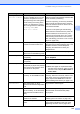
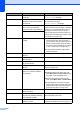
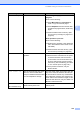
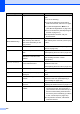
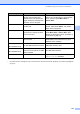
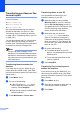
Table Of Contents
- USER’S GUIDE MFC-9120CN MFC-9320CW
- Approval Information and Compilation and Publication Notice
- EC Declaration of Conformity
- Table of Contents
- Section I: General
- 1 General information
- Using the documentation
- Accessing the Software User’s Guide and Network User’s Guide
- Viewing documentation
- Viewing documentation (Windows®)
- How to find scanning instructions
- Software User’s Guide:
- ScanSoft™ PaperPort™ 11SE with OCR How-to-Guides:
- How to find Network setup instructions
- Viewing documentation (Macintosh)
- How to find scanning instructions
- Software User’s Guide:
- Presto! PageManager User’s Guide:
- How to find Network setup instructions
- Viewing documentation
- Accessing Brother Support (For Windows®)
- Control panel overview
- 2 Loading paper and documents
- 3 General Setup
- 4 Security features
- 1 General information
- Section II: Fax
- 5 Sending a fax
- How to fax
- Broadcasting (black & white only)
- Additional sending operations
- Sending faxes using multiple settings
- Electronic cover page (black & white only)
- Contrast
- Changing Fax Resolution
- Dual access (black & white only)
- Real Time Transmission
- Overseas Mode
- Delayed Fax (black & white only)
- Delayed batch transmission (black & white only)
- Checking and cancelling waiting jobs
- Sending a fax manually
- Out of memory message
- 6 Receiving a fax
- 7 Telephone and external devices
- 8 Dialling and storing numbers
- 9 Remote Fax Options (black & white only)
- 10 Polling
- 11 Printing reports
- 5 Sending a fax
- Section III: Copy
- Section IV: Direct printing
- Section V: Software
- Section VI: Appendixes
- A Safety and legal
- B Options
- C Troubleshooting and routine maintenance
- Troubleshooting
- Error and maintenance messages
- Routine maintenance
- Replacing the consumable items
- Replacing periodic maintenance parts
- Machine Information
- Packing and shipping the machine
- D Menu and features
- E Specifications
- F Glossary
- Index
- brother UK/IRE

Troubleshooting and routine maintenance
133
C
Cooling Down
Wait for a while
The temperature of the drum unit
or toner cartridge is too hot. The
machine will pause its current
print job and go into cooling down
mode. During the cooling down
mode, you will hear the cooling
fan running while the LCD shows
Cooling Down, and
Wait for a while.
Make sure that you can hear the fan in the
machine spinning and that the exhaust outlet
is not blocked by something.
If the fan is spinning, remove any obstacles
that surround the exhaust outlet, and then
leave the machine turned on but do not use
it for several minutes.
If the fan is not spinning do the following:
Disconnect the machine from the power for
several minutes, then reconnect it. (The
machine can be turned off for up to 4 days
without losing faxes stored in the memory.
See Transferring your faxes or Fax Journal
report on page 138.)
Comm.Error Poor telephone line quality
caused a communication error.
Try sending the fax again or try connecting
the machine to another telephone line. If the
problem continues, call the telephone
company and ask them to check your
telephone line.
Connection Fail You tried to poll a fax machine
that is not in Polled Waiting mode.
Check the other fax machine’s polling setup.
Cover is Open The ADF cover is not closed
completely.
Close the ADF cover of the machine, then
press Stop/Exit.
The top cover is not closed
completely.
Close the top cover of the machine.
Cover is Open The fuser cover is not closed
completely or paper was jammed
in the back of the machine when
you turned on the power.
Close the fuser cover of the machine.
Make sure paper is not jammed inside
the back of the machine, and then close
the fuser cover and press Mono Start or
Colour Start.
DIMM Error The DIMM is not installed
correctly. Or the DIMM is broken.
Turn off the machine. Re-install the DIMM
correctly. Wait a few seconds, and then turn
it on again. If this error message appears
again, replace the DIMM with a new one.
(See Installing extra memory on page 113.)
Disconnected The other person or other
person’s fax machine stopped the
call.
Try to send or receive again.
Document Jam The document was not inserted
or fed correctly, or the document
scanned from the ADF was too
long.
See Document jams on page 139 or Using
the automatic document feeder (ADF)
on page 22.
Drum Error The corona wire on the drum unit
needs to be cleaned.
Clean the corona wire on the drum unit. (See
Cleaning the corona wires on page 148.)
It is time to replace the drum
units.
Replace the drum unit with a new one for the
colour that is indicated on the LCD. (See
Replacing the drum units on page 164.)
Error Message Cause Action