
User`s guide
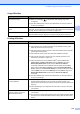
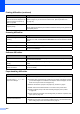
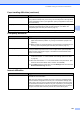

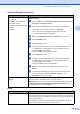
Table Of Contents
- USER’S GUIDE MFC-9120CN MFC-9320CW
- Approval Information and Compilation and Publication Notice
- EC Declaration of Conformity
- Table of Contents
- Section I: General
- 1 General information
- Using the documentation
- Accessing the Software User’s Guide and Network User’s Guide
- Viewing documentation
- Viewing documentation (Windows®)
- How to find scanning instructions
- Software User’s Guide:
- ScanSoft™ PaperPort™ 11SE with OCR How-to-Guides:
- How to find Network setup instructions
- Viewing documentation (Macintosh)
- How to find scanning instructions
- Software User’s Guide:
- Presto! PageManager User’s Guide:
- How to find Network setup instructions
- Viewing documentation
- Accessing Brother Support (For Windows®)
- Control panel overview
- 2 Loading paper and documents
- 3 General Setup
- 4 Security features
- 1 General information
- Section II: Fax
- 5 Sending a fax
- How to fax
- Broadcasting (black & white only)
- Additional sending operations
- Sending faxes using multiple settings
- Electronic cover page (black & white only)
- Contrast
- Changing Fax Resolution
- Dual access (black & white only)
- Real Time Transmission
- Overseas Mode
- Delayed Fax (black & white only)
- Delayed batch transmission (black & white only)
- Checking and cancelling waiting jobs
- Sending a fax manually
- Out of memory message
- 6 Receiving a fax
- 7 Telephone and external devices
- 8 Dialling and storing numbers
- 9 Remote Fax Options (black & white only)
- 10 Polling
- 11 Printing reports
- 5 Sending a fax
- Section III: Copy
- Section IV: Direct printing
- Section V: Software
- Section VI: Appendixes
- A Safety and legal
- B Options
- C Troubleshooting and routine maintenance
- Troubleshooting
- Error and maintenance messages
- Routine maintenance
- Replacing the consumable items
- Replacing periodic maintenance parts
- Machine Information
- Packing and shipping the machine
- D Menu and features
- E Specifications
- F Glossary
- Index
- brother UK/IRE

Troubleshooting and routine maintenance
123
C
The network scanning feature
does not work.
The network PC Fax Receive
feature does not work.
The network printing feature does
not work.
(continued)
(Windows Vista
®
)
a Click the Start button, Control Panel, Network and Internet, Windows
Firewall and click Change settings.
b When the User Account Control screen appears, do the following.
Users who have administrator rights: Click Continue.
For users who do not have administrator rights: Enter the
administrator password and click OK.
c Make sure that Windows Firewall on the General tab is set to On.
d Click the Exceptions tab.
e Click the Add port... button.
f To add port 54925 for network scanning, enter the information below:
1. In Name: Enter any description. (for example “Brother Scanner”)
2. In Port number: Enter “54925”.
3. Make sure UDP is chosen. Then click OK.
g Click the Add port... button.
h To add port 54926 for Network PC Fax, enter the information below:
1. In Name: Enter any description. (for example “Brother PC Fax”)
2. In Port number: Enter “54926”.
3. Make sure UDP is chosen. Then click OK.
i Make sure that the new setting is added and is checked, and then
click OK.
j If you still have trouble with your network connection such as network
scanning or printing, check File and Printer Sharing box in the
Exceptions tab and then click OK.
Your computer cannot find your
machine.
(Windows
®
) The firewall setting on your PC may be rejecting the necessary
network connection. (For details, see the instructions above.)
(Macintosh) Re-select your machine in the Device Selector application located
in Macintosh HD/Library/Printers/Brother/Utilities/DeviceSelector or from
the Model pop-up menu of ControlCenter2.
Other
Difficulties Suggestions
The machine will not turn on. Adverse conditions on the power connection (such as lightning or a power surge)
may have triggered the machine’s internal safety mechanisms. Turn the machine
off and unplug the power cord. Wait for ten minutes, then plug in the power cord
and turn the machine on.
If the problem is not solved, turn off the machine. Plug the power cord into a
different known working outlet and turn on the machine.
Network difficulties (continued)
Difficulties Suggestions