
User`s guide
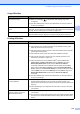
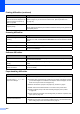
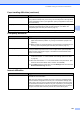

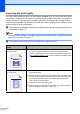
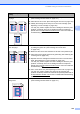
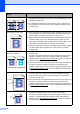
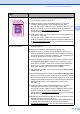
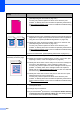
Table Of Contents
- USER’S GUIDE MFC-9120CN MFC-9320CW
- Approval Information and Compilation and Publication Notice
- EC Declaration of Conformity
- Table of Contents
- Section I: General
- 1 General information
- Using the documentation
- Accessing the Software User’s Guide and Network User’s Guide
- Viewing documentation
- Viewing documentation (Windows®)
- How to find scanning instructions
- Software User’s Guide:
- ScanSoft™ PaperPort™ 11SE with OCR How-to-Guides:
- How to find Network setup instructions
- Viewing documentation (Macintosh)
- How to find scanning instructions
- Software User’s Guide:
- Presto! PageManager User’s Guide:
- How to find Network setup instructions
- Viewing documentation
- Accessing Brother Support (For Windows®)
- Control panel overview
- 2 Loading paper and documents
- 3 General Setup
- 4 Security features
- 1 General information
- Section II: Fax
- 5 Sending a fax
- How to fax
- Broadcasting (black & white only)
- Additional sending operations
- Sending faxes using multiple settings
- Electronic cover page (black & white only)
- Contrast
- Changing Fax Resolution
- Dual access (black & white only)
- Real Time Transmission
- Overseas Mode
- Delayed Fax (black & white only)
- Delayed batch transmission (black & white only)
- Checking and cancelling waiting jobs
- Sending a fax manually
- Out of memory message
- 6 Receiving a fax
- 7 Telephone and external devices
- 8 Dialling and storing numbers
- 9 Remote Fax Options (black & white only)
- 10 Polling
- 11 Printing reports
- 5 Sending a fax
- Section III: Copy
- Section IV: Direct printing
- Section V: Software
- Section VI: Appendixes
- A Safety and legal
- B Options
- C Troubleshooting and routine maintenance
- Troubleshooting
- Error and maintenance messages
- Routine maintenance
- Replacing the consumable items
- Replacing periodic maintenance parts
- Machine Information
- Packing and shipping the machine
- D Menu and features
- E Specifications
- F Glossary
- Index
- brother UK/IRE

Troubleshooting and routine maintenance
121
C
How do I print on envelopes? You can load envelopes from the manual feed slot. Your application must be set
up to print the envelope size you are using. This is usually done in the Page Setup
or Document Setup menu of your application. (See your application’s manual for
more information.)
What paper can I use? You can use thin paper, plain paper, thick paper, bond paper, recycled paper,
envelopes and labels that are made for laser machines. (For details, see
Acceptable paper and other print media on page 17.)
There is a paper jam. Clear the jammed paper. (See Paper jams on page 140.)
Print quality difficulties
Difficulties Suggestions
Printed pages are curled. Low quality thin or thick paper or not printing on the recommended side of the
paper could cause this problem. Try turning over the stack of paper in the
paper tray.
Make sure that you choose the Paper Type that suits the print media type you
are using. (See Acceptable paper and other print media on page 17.)
Printed pages are smeared. The Paper Type setting may be incorrect for the type of print media you are using,
or the print media may be too thick or have a rough surface. (See Acceptable
paper and other print media on page 17 and Basic tab in the Software User’s
Guide on the CD-ROM.)
Printouts are too light. If this problem occurs when making copies or printing received faxes, set
Toner Save mode to Off in the machine menu settings. (See Toner Save
on page 26.)
Set Toner Save mode to Off in the Advanced tab in the printer driver. (See
Advanced tab in the Software User’s Guide on the CD-ROM.)
In the Basic tab of the printer driver, click the Settings button and check the
Enhance Black Printing check box.
Network difficulties
Difficulties Suggestions
Cannot print over a wired Network. If you are having Network problems see the Network User’s Guide on the
CD-ROM for more information.
Make sure your machine is powered on and is on-line and in the Ready mode.
Print the Network Configuration list to see your current Network settings. (See
How to print a report on page 78.) Reconnect the LAN cable to the hub to verify
that the cable and network connections are good. If possible, try connecting the
machine to a different port on your hub using a different cable. If the connections
are good, the lower LED of the back panel of the machine will be green.
Paper handling difficulties (continued)
Difficulties Suggestions