
User`s guide
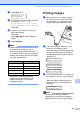
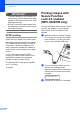
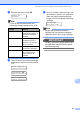

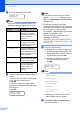

Table Of Contents
- USER’S GUIDE MFC-9120CN MFC-9320CW
- Approval Information and Compilation and Publication Notice
- EC Declaration of Conformity
- Table of Contents
- Section I: General
- 1 General information
- Using the documentation
- Accessing the Software User’s Guide and Network User’s Guide
- Viewing documentation
- Viewing documentation (Windows®)
- How to find scanning instructions
- Software User’s Guide:
- ScanSoft™ PaperPort™ 11SE with OCR How-to-Guides:
- How to find Network setup instructions
- Viewing documentation (Macintosh)
- How to find scanning instructions
- Software User’s Guide:
- Presto! PageManager User’s Guide:
- How to find Network setup instructions
- Viewing documentation
- Accessing Brother Support (For Windows®)
- Control panel overview
- 2 Loading paper and documents
- 3 General Setup
- 4 Security features
- 1 General information
- Section II: Fax
- 5 Sending a fax
- How to fax
- Broadcasting (black & white only)
- Additional sending operations
- Sending faxes using multiple settings
- Electronic cover page (black & white only)
- Contrast
- Changing Fax Resolution
- Dual access (black & white only)
- Real Time Transmission
- Overseas Mode
- Delayed Fax (black & white only)
- Delayed batch transmission (black & white only)
- Checking and cancelling waiting jobs
- Sending a fax manually
- Out of memory message
- 6 Receiving a fax
- 7 Telephone and external devices
- 8 Dialling and storing numbers
- 9 Remote Fax Options (black & white only)
- 10 Polling
- 11 Printing reports
- 5 Sending a fax
- Section III: Copy
- Section IV: Direct printing
- Section V: Software
- Section VI: Appendixes
- A Safety and legal
- B Options
- C Troubleshooting and routine maintenance
- Troubleshooting
- Error and maintenance messages
- Routine maintenance
- Replacing the consumable items
- Replacing periodic maintenance parts
- Machine Information
- Packing and shipping the machine
- D Menu and features
- E Specifications
- F Glossary
- Index
- brother UK/IRE

Chapter 14
96
d Enter the password. Press OK.
Change ID
PIN:XXXX
Note
If your ID has the restricted options, the
following messages appear on the LCD.
e The file names appear if the password is
correct.
Press a or b to choose the folder name
or file name you want to print.
Press OK.
If you have chosen the folder name,
press a or b to choose the file name you
want to print.
Press OK.
Direct Print
1.FILE_1.PDF
Note
• If you want to print an index of the files,
choose Index Print, and then press
OK. Press Mono Start or Colour Start to
print the data.
• File names containing more than
8 characters will appear on the LCD as the
first 6 characters of the file name followed
by a tilde mark (~) and a number.
For example, “HOLIDAY2007.JPG” would
appear as “HOLIDA~1.JPG”.
Only the following characters can be
displayed on the LCD:
A B C D E F G H I J K L M N O P Q R S T
U V W X Y Z 0 1 2 3 4 5 6 7 8 9 $ % ’ ` - @
{ } ~ ! # ( ) & _ ^
f Do one of the following:
Press a or b to choose a setting you
need to change and press OK, and
then press a or b to choose an option
for the setting and press OK.
If you do not need to change the
current default settings, go to
step g.
Print File Set
Paper Size e
Note
• You can choose the following settings:
Paper Size
Media Type
Multiple Page
Orientation
Collate
Print Quality
PDF Option
• Depending on the file type, some of
these settings may not appear.
g Press Mono Start or Colour Start if
you have finished.
Message Meaning
Access Denied Printing documents
directly from the USB
flash memory drive to the
Brother machine is
restricted.
Limit Exceeded The number of pages you
are allowed to print is
exceeded. The print job
will be cancelled.
No Permission You have attempted to
print in colour using an ID
that is restricted to mono
printing only. The print job
will be cancelled.
Mono Print Only Appears at log in for
users who are restricted
to mono printing only.
Not Available Printing pictures directly
from the USB Flash
memory drive to the
Brother machine is
restricted.