
User Manual
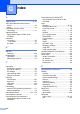

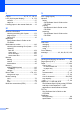
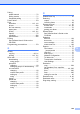
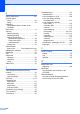

Table Of Contents
- USER’S GUIDE MFC-9120CN MFC-9320CW
- Approval Information and Compilation and Publication Notice
- EC Declaration of Conformity (EU only)
- Table of Contents
- Section I: General
- 1 General information
- Using the documentation
- Accessing the Software User’s Guide and Network User’s Guide
- Viewing documentation
- Viewing documentation (Windows®)
- How to find scanning instructions
- Software User’s Guide:
- ScanSoft™ PaperPort™ 11SE with OCR How-to-Guides:
- How to find Network setup instructions
- Viewing documentation (Macintosh)
- How to find scanning instructions
- Software User’s Guide:
- Presto! PageManager User’s Guide:
- How to find Network setup instructions
- Viewing documentation
- Accessing Brother Support (For Windows®)
- Control panel overview
- 2 Loading paper and documents
- 3 General Setup
- 4 Security features
- 1 General information
- Section II: Fax
- 5 Sending a fax
- How to fax
- Broadcasting (black & white only)
- Additional sending operations
- Sending faxes using multiple settings
- Electronic cover page (black & white only)
- Contrast
- Changing Fax Resolution
- Dual access (black & white only)
- Real Time Transmission
- Overseas Mode
- Delayed Fax (black & white only)
- Delayed batch transmission (black & white only)
- Checking and cancelling waiting jobs
- Sending a fax manually
- Out of memory message
- 6 Receiving a fax
- 7 Telephone and external devices
- 8 Dialling and storing numbers
- 9 Remote Fax Options (black & white only)
- 10 Polling
- 11 Printing reports
- 5 Sending a fax
- Section III: Copy
- Section IV: Direct printing
- Section V: Software
- Section VI: Appendixes
- A Safety and legal
- B Options
- C Troubleshooting and routine maintenance
- Troubleshooting
- Error and maintenance messages
- Routine maintenance
- Replacing the consumable items
- Replacing periodic maintenance parts
- Machine Information
- Packing and shipping the machine
- D Menu and features
- E Specifications
- F Glossary
- Index
- brother SAF/GLF

220
ECM (Error Correction Mode)
Detects errors during fax transmission
and resends the pages of the fax that had
an error.
Extension telephone
A telephone on the fax number that is
plugged into a separate wall socket.
External phone
A TAD (telephone answering device) or
telephone that is connected to your
machine.
F/T Ring Time
The length of time that the Brother
machine pseudo/double-rings (when the
Receive Mode setting is Fax/Tel) to notify
you to pick up a voice call that it answered.
Fax Detect
Enables your machine to respond to CNG
tones if you interrupt a fax call by
answering it.
Fax Forwarding
Sends a fax received into the memory to
another pre-programmed fax number.
Fax Journal
Lists information about the last 200
incoming and outgoing faxes. TX means
Transmit. RX means Receive.
Fax Storage
You can store faxes in the memory.
Fax tones
The signals sent by sending and receiving
fax machines while communicating
information.
Fax/Tel
You can receive faxes and telephone
calls. Do not use this mode if you are
using a telephone answering device
(TAD).
Fine resolution
Resolution is 203 × 196 dpi. It is used for
small print and graphs.
Greyscale
The shades of grey available for copying
and faxing photographs.
Group number
A combination of One Touch and
Speed Dial numbers that are stored on a
One Touch key or in a Speed Dial location
for Broadcasting.
Help List
A printout of the complete Menu table that
you can use to program your machine
when you do not have the User’s Guide
with you.
Journal Period
The pre-programmed time period
between automatically printed Fax
Journal Reports. You can print the Fax
Journal on demand without interrupting
the cycle.
LCD (liquid crystal display)
The display screen on the machine that
shows interactive messages during
On-Screen Programming and shows the
date and time when the machine is idle.
Manual fax
When you lift the handset of your external
telephone so you can hear the receiving
fax machine answer before you press
Start to begin transmission.
Menu mode
Programming mode for changing your
machine’s settings.
OCR (optical character recognition)
The bundled ScanSoft™
PaperPort™ 11SE with OCR or Presto!
PageManager software application
converts an image of text to text you can
edit.
One Touch
Keys on the machine’s control panel
where you can store numbers for easy
dialling. You can store a second number
on each key if you press Shift and the
One Touch key together.