
User Manual
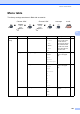

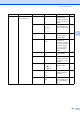
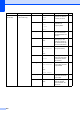
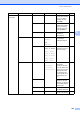
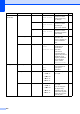
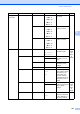
Table Of Contents
- USER’S GUIDE MFC-9120CN MFC-9320CW
- Approval Information and Compilation and Publication Notice
- EC Declaration of Conformity (EU only)
- Table of Contents
- Section I: General
- 1 General information
- Using the documentation
- Accessing the Software User’s Guide and Network User’s Guide
- Viewing documentation
- Viewing documentation (Windows®)
- How to find scanning instructions
- Software User’s Guide:
- ScanSoft™ PaperPort™ 11SE with OCR How-to-Guides:
- How to find Network setup instructions
- Viewing documentation (Macintosh)
- How to find scanning instructions
- Software User’s Guide:
- Presto! PageManager User’s Guide:
- How to find Network setup instructions
- Viewing documentation
- Accessing Brother Support (For Windows®)
- Control panel overview
- 2 Loading paper and documents
- 3 General Setup
- 4 Security features
- 1 General information
- Section II: Fax
- 5 Sending a fax
- How to fax
- Broadcasting (black & white only)
- Additional sending operations
- Sending faxes using multiple settings
- Electronic cover page (black & white only)
- Contrast
- Changing Fax Resolution
- Dual access (black & white only)
- Real Time Transmission
- Overseas Mode
- Delayed Fax (black & white only)
- Delayed batch transmission (black & white only)
- Checking and cancelling waiting jobs
- Sending a fax manually
- Out of memory message
- 6 Receiving a fax
- 7 Telephone and external devices
- 8 Dialling and storing numbers
- 9 Remote Fax Options (black & white only)
- 10 Polling
- 11 Printing reports
- 5 Sending a fax
- Section III: Copy
- Section IV: Direct printing
- Section V: Software
- Section VI: Appendixes
- A Safety and legal
- B Options
- C Troubleshooting and routine maintenance
- Troubleshooting
- Error and maintenance messages
- Routine maintenance
- Replacing the consumable items
- Replacing periodic maintenance parts
- Machine Information
- Packing and shipping the machine
- D Menu and features
- E Specifications
- F Glossary
- Index
- brother SAF/GLF

188
4.Printer
(Continued)
6.Auto Regist. 1.
Registration
1.Start Adjust the print
position of each
colour automatically.
152
2.Exit
2.Frequency Low
Medium*
High
Off
Set the interval time
you want to carry out
the auto registration.
7.Manual Regist. 1.Print Chart — Print the chart to
manually check the
registration of the
colours.
152
2.Set Regist. 1 Magenta
2 Cyan
3 Yellow
4 Magenta
5 Cyan
6 Yellow
7 Magenta
8 Cyan
9 Yellow
Sets the correction
value on the chart you
printed from
Print Chart.
8.Drum Cleaning — — Carry out cleaning the
drum unit to improve
the print quality
problem.
146
5.
USB Direct I/F
(MFC-9320CW
only)
1.Direct Print 1.Paper Size A4*
Letter
Legal
Executive
A5
A5 L
A6
B5
B6
Folio
Sets the paper size
when printing directly
from the USB flash
memory drive.
91
2.Media Type Thin
Plain*
Thick
Thicker
Recycled Paper
Sets the media type
when printing directly
from the USB flash
memory drive.
91
Main Menu Submenu Menu Selections Options Descriptions Page