
User Manual

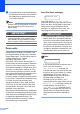
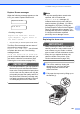
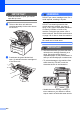
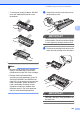
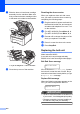

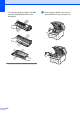
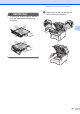

Table Of Contents
- USER’S GUIDE MFC-9120CN MFC-9320CW
- Approval Information and Compilation and Publication Notice
- EC Declaration of Conformity (EU only)
- Table of Contents
- Section I: General
- 1 General information
- Using the documentation
- Accessing the Software User’s Guide and Network User’s Guide
- Viewing documentation
- Viewing documentation (Windows®)
- How to find scanning instructions
- Software User’s Guide:
- ScanSoft™ PaperPort™ 11SE with OCR How-to-Guides:
- How to find Network setup instructions
- Viewing documentation (Macintosh)
- How to find scanning instructions
- Software User’s Guide:
- Presto! PageManager User’s Guide:
- How to find Network setup instructions
- Viewing documentation
- Accessing Brother Support (For Windows®)
- Control panel overview
- 2 Loading paper and documents
- 3 General Setup
- 4 Security features
- 1 General information
- Section II: Fax
- 5 Sending a fax
- How to fax
- Broadcasting (black & white only)
- Additional sending operations
- Sending faxes using multiple settings
- Electronic cover page (black & white only)
- Contrast
- Changing Fax Resolution
- Dual access (black & white only)
- Real Time Transmission
- Overseas Mode
- Delayed Fax (black & white only)
- Delayed batch transmission (black & white only)
- Checking and cancelling waiting jobs
- Sending a fax manually
- Out of memory message
- 6 Receiving a fax
- 7 Telephone and external devices
- 8 Dialling and storing numbers
- 9 Remote Fax Options (black & white only)
- 10 Polling
- 11 Printing reports
- 5 Sending a fax
- Section III: Copy
- Section IV: Direct printing
- Section V: Software
- Section VI: Appendixes
- A Safety and legal
- B Options
- C Troubleshooting and routine maintenance
- Troubleshooting
- Error and maintenance messages
- Routine maintenance
- Replacing the consumable items
- Replacing periodic maintenance parts
- Machine Information
- Packing and shipping the machine
- D Menu and features
- E Specifications
- F Glossary
- Index
- brother SAF/GLF

Troubleshooting and routine maintenance
161
C
Replace Drums messages C
When the following message appears on the
LCD, you need to replace the drum kit:
Replace Drums
Drum Error
1
Only the colour you need to replace will be shown
The Drum Error message has two cases: If
the scrolling message shows
Replace the Drum Unit. you will need
to replace the drum unit. If the scrolling
message shows
Slide the Green tab on Drum Unit.
you do not need to replace the drum unit, you
just need to clean the corona wires. (See
Cleaning the corona wires on page 145.)
IMPORTANT
For best performance, use only Genuine
Brother drum units and Genuine Brother
toner units. Printing with a third-party drum
unit or toner unit may reduce not only the
print quality but also the quality and life of
the printer itself. Warranty coverage may
not apply to problems caused by the use
of a third-party drum unit or toner unit.
Note
If only the specified drum needs to be
replaced, the LCD shows the
Replace Drum(X) message. (X)
indicates the drum unit colour that you
need to replace. ((K)=Black, (Y)=Yellow,
(M)=Magenta, (C)=Cyan). During the
normal lifespan of a drum kit the Replace
Drum (X) message will not appear. The
message will only refer to a specific drum
if a single unit has been replaced
previously due to damage or error.
Replacing the drum units C
IMPORTANT
• While removing the drum unit, handle it
carefully because it may contain toner. If
toner scatters on your hands or clothes,
wipe or wash it off with cold water at once.
• Every time you replace the drum unit,
clean the inside of the printer. (See
Routine maintenance on page 142.)
a Turn off the machine. Unplug the
telephone line cord first, and then
unplug the power cord from the
electrical socket.
b Fully open the top cover by lifting up on
the handle (1).
<Scrolling message>
Replace the Drum Unit. Black/
Cyan/ Magenta/ Yellow. Refer to
the User’s Guide.
1
1