
User Manual

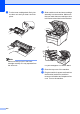


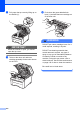

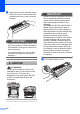
Table Of Contents
- USER’S GUIDE MFC-9120CN MFC-9320CW
- Approval Information and Compilation and Publication Notice
- EC Declaration of Conformity (EU only)
- Table of Contents
- Section I: General
- 1 General information
- Using the documentation
- Accessing the Software User’s Guide and Network User’s Guide
- Viewing documentation
- Viewing documentation (Windows®)
- How to find scanning instructions
- Software User’s Guide:
- ScanSoft™ PaperPort™ 11SE with OCR How-to-Guides:
- How to find Network setup instructions
- Viewing documentation (Macintosh)
- How to find scanning instructions
- Software User’s Guide:
- Presto! PageManager User’s Guide:
- How to find Network setup instructions
- Viewing documentation
- Accessing Brother Support (For Windows®)
- Control panel overview
- 2 Loading paper and documents
- 3 General Setup
- 4 Security features
- 1 General information
- Section II: Fax
- 5 Sending a fax
- How to fax
- Broadcasting (black & white only)
- Additional sending operations
- Sending faxes using multiple settings
- Electronic cover page (black & white only)
- Contrast
- Changing Fax Resolution
- Dual access (black & white only)
- Real Time Transmission
- Overseas Mode
- Delayed Fax (black & white only)
- Delayed batch transmission (black & white only)
- Checking and cancelling waiting jobs
- Sending a fax manually
- Out of memory message
- 6 Receiving a fax
- 7 Telephone and external devices
- 8 Dialling and storing numbers
- 9 Remote Fax Options (black & white only)
- 10 Polling
- 11 Printing reports
- 5 Sending a fax
- Section III: Copy
- Section IV: Direct printing
- Section V: Software
- Section VI: Appendixes
- A Safety and legal
- B Options
- C Troubleshooting and routine maintenance
- Troubleshooting
- Error and maintenance messages
- Routine maintenance
- Replacing the consumable items
- Replacing periodic maintenance parts
- Machine Information
- Packing and shipping the machine
- D Menu and features
- E Specifications
- F Glossary
- Index
- brother SAF/GLF

Troubleshooting and routine maintenance
155
C
Note
• Discard used consumable items according to local regulations. (See EU Directive 2002/96/EC
and EN50419 on page 107.) If you choose not to return your used consumable, please discard
the used consumable according to local regulations, keeping it separate from domestic waste.
If you have questions, call your local waste disposal office.
• We recommend placing used consumable items on a piece of paper to prevent accidentally
spilling or scattering the material inside.
• If you use paper that is not a direct equivalent for the recommended paper, the life of
consumable items and machine parts may be reduced.
• The projected life of the cartridge is based on ISO/IEC 19798. Frequency of replacement will
vary depending on the complexity of printed pages, percentage of coverage and type of media
used.
Replacing a Toner cartridge C
The Standard toner cartridges can print
approximately 2,200 pages (black) or
approximately 1,400 pages (yellow, magenta,
cyan)
1
. Actual page count will vary
depending on your average type of
document. The machine is supplied with a
Starter toner cartridge that will need to be
replaced after approximately 1,000 pages
1
.
When a toner cartridge is running low, the
LCD shows Toner Low.
1
Approx. cartridge yield is declared in accordance
with ISO/IEC 19798.
Note
• It is a good idea to keep a new toner
cartridge ready for use when you see the
Toner Low warning.
• To ensure high quality printing, we
recommend that use only Genuine
Brother Brand toner cartridges. When you
want to buy toner cartridges, please call
your Brother dealer.
• We recommend that you clean the
machine when you replace the toner
cartridge. See Routine maintenance
on page 142.
• If you change the print density setting for
lighter or darker printing, the amount of
toner used will change.
• Wait to unpack the toner cartridge until
immediately before you put it into the
machine.
Toner Low message C
Toner Low
Prepare...
If the LCD shows Toner Low
Prepare New X Toner Cartridge.,
the machine has nearly run out of toner. Buy
a new toner cartridge and have it ready
before you get a Replace Toner message.
The LCD shows the toner colour that is near
the end of its life (Black, Yellow, Magenta or
Cyan).
Replace Toner message C
When the following message appears on the
LCD, you need to replace the toner cartridge:
Replace Toner
The scrolling message on the LCD indicates
which colour you need to replace.
a Turn off the machine. Unplug the
telephone line cord first, and then
unplug the power cord from the
electrical socket.