
User Manual
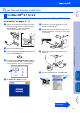
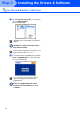
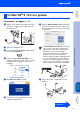
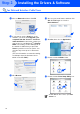
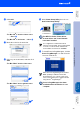
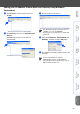
Table Of Contents
- Quick Setup Guide MFC-8460N/MFC-8860DN
- Getting Started
- Table of Contents
- Step1 Setting Up the machine
- Step2 Installing the Drivers & Software
- Supplied CD-ROM “MFL-Pro Suite”
- For USB Interface Cable Users (For Windows® 98/98SE/Me/2000 Professional/XP/XP Professional x64 Edition)
- For Parallel Interface Cable Users (For Windows® 98/98SE/Me/2000 Professional/XP/XP Professional x64 Edition)
- For Windows NT® Workstation Version 4.0 Users
- For Network Interface Cable Users (For Windows® 98/98SE/Me/NT/2000 Professional/XP/XP Professional x64 Edition)
- For USB Interface Cable Users
- For Network Interface Cable Users
- For Network Users and Administrators
- Options and Consumables
- brother UK/IRE/SAF

33
F
Click Add.
For Mac OS
®
X 10.2.4 to 10.3.x users
➝
Go to
G
For Mac OS
®
X 10.4 users
➝
Go to
H
G
Make the selection shown below.
H
Choose your model name, and then click
Add.
For Mac OS
®
X 10.2.4 to 10.3 users:
For Mac OS
®
X 10.4 or greater users:
I
Click Printer Setup Utility, then choose
Quit Printer Setup Utility.
The MFL-Pro Suite, Printer driver,
Scanner driver and ControlCenter2
have been installed.
J
To install Presto!
®
PageManager
®
, click the
Presto! PageManager icon and follow the
on-screen instructions.
Presto!
®
PageManager
®
has been
installed and the installation is now
complete.
For configuration of advanced network
functions such as LDAP, Scan to FTP and Fax
to Server, see the Software and Network
User’s Guides located on the CD-ROM.
When Presto!
®
PageManager
®
is installed
OCR capability is added to the Brother
ControlCenter2. You can also easily scan,
share, and organize photos and documents
using Presto!
®
PageManager
®
.
Installing the Drivers & Software
Setting Up
the machine
Macintosh
®
Network
Network
Administrators