
User Manual
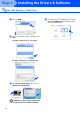
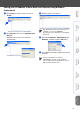
Table Of Contents
- Quick Setup Guide MFC-8460N/8860DN
- Getting Started
- Table of Contents
- Step1 Setting Up the machine
- Step2 Installing the Drivers & Software
- Supplied CD-ROM “MFL-Pro Suite”
- For USB Interface Cable Users (For Windows® 98/98SE/Me/2000 Professional/XP/XP Professional x64 Edition)
- For Parallel Interface Cable Users (For Windows® 98/98SE/Me/2000 Professional/XP/XP Professional x64 Edition)
- For Windows NT® Workstation Version 4.0 Users
- For Network Interface Cable Users (For Windows® 98/98SE/Me/NT/2000 Professional/XP/XP Professional x64 Edition)
- For USB Interface Cable Users
- For USB Interface Cable Users
- For Network Users and Administrators
- Options and Consumables
- Brother ENG

31
Setting your IP Address, Subnet Mask and Gateway using BRAdmin
Professional
1 Start BRAdmin Professional, and select
TCP/IP.
2 Click Devices, then choose Search Active
Devices.
BRAdmin will search for new devices
automatically.
3 Double-click the new device.
4 Enter the IP Address, Subnet Mask and
Gateway, and then click the OK button.
5 The address information will be saved to the
machine.
The default password for the print server is
“access”. You can use BRAdmin
Professional or a web browser to change this
password.
For more information on network
administration, please see the Network
User’s Guide in the programs menu or go to
http://solutions.brother.com
Setting Up
the machine
Windows
®
USB
Windows
®
Parallel
Windows
NT
®
4.0
Parallel
Macintosh
®
USB
Macintosh
®
Network
Windows
®
Network
Network
Administrators