
User Manual
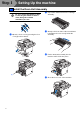
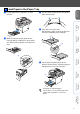
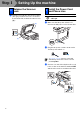
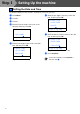
Table Of Contents
- Quick Setup Guide MFC-8460N/MFC-8860DN
- Getting Started
- Table of Contents
- Step1 Setting Up the machine
- 1 Install the Drum Unit Assembly
- 2 Load Paper in the Paper Tray
- 3 Release the Scanner Lock
- 4 Install the Power Cord and Phone Line
- 5 Set Your Country (For Australia / New Zealand Customer Only)
- 6 Setting the Date and Time
- 7 Setting your Station ID
- 8 Tone and Pulse dialling mode (not available for New Zealand)
- 9 Selecting a Receive Mode
- 10 Setting the LCD Contrast
- Step2 Installing the Drivers & Software
- Supplied CD-ROM “MFL-Pro Suite”
- For USB Interface Cable Users (For Windows® 98/98SE/Me/2000 Professional/XP/XP Professional x64 Edition)
- For Parallel Interface Cable Users (For Windows® 98/98SE/Me/2000 Professional/XP/XP Professional x64 Edition)
- For Windows NT® Workstation Version 4.0 Users
- For Network Interface Cable Users (For Windows® 98/98SE/Me/NT/2000 Professional/XP/XP Professional x64 Edition)
- For USB Interface Cable Users
- For Network Interface Cable Users
- For Network Users and Administrators
- Options and Consumables
- brother ARL/ASA/NZ

8
.
The machine displays the date and time, and prints it on every fax you send.
1
Press Menu.
2
Press 0.
3
Press 2.
4
Enter the last two digits of the year on the
dial pad, and then press OK.
(e.g. Enter 0, 6 for 2006.)
5
Enter the two digits for the month on the dial
pad, and then press OK.
(e.g. Enter 0, 3 for March.)
6
Enter the two digits for the day on the dial
pad, and then press OK.
(e.g. Enter 2, 5.)
7
Enter the time in 24-hour format on the dial
pad, and then press OK.
(e.g. Enter 1, 5, 2, 5 for 3:25 P.M.)
8
Press Stop/Exit.
6 Setting the Date and Time
02.Date/Time
Year:2006
Enter & OK Key
02.Date/Time
XX/XX/2006
Month:03
Enter & OK Key
02.Date/Time
XX/03/2006
Day:25
Enter & OK Key
02.Date/Time
25/03/2006
Time:15:25
Enter & OK Key
If you make a mistake, press Stop/Exit to
start from Step
1
.
Step 1
Setting Up the machine