
User Manual
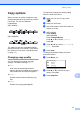
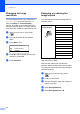
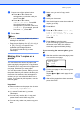
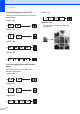

Table Of Contents
- USER’S GUIDE MFC-8460N/MFC-8860DN
- Approval Information and Compilation and Publication Notice
- Table of Contents
- Section I : General
- 1 General information
- Using the documentation
- Accessing the complete User’s Guide
- Viewing documentation
- Viewing documentation (Windows®)
- How to find Scanning instructions
- Software User's Guide:
- PaperPort® User's Guide:
- How to find Internet FAX instructions (MFC-8860DN only)
- Viewing Documentation (Macintosh®)
- How to find Scanning instructions
- Software User's Guide:
- Presto!® PageManager® User's Guide:
- How to find Internet FAX instructions (MFC-8860DN only)
- Viewing documentation
- Control panel overview
- 2 Loading documents and paper
- 3 General setup
- 4 Security features
- 1 General information
- Section II : Fax
- 5 Sending a fax
- How to fax
- Broadcasting
- Additional sending operations
- 6 Receiving a fax
- 7 Phone and external devices
- 8 Dialling and storing numbers
- 9 Remote fax options
- 10 Printing reports
- 11 Polling
- 5 Sending a fax
- Section III : Copy
- Section IV : Software
- Section V : Appendices
- A : Safety and Legal
- B : Options
- C : Troubleshooting and routine maintenance
- D : Menu and Features
- E : Specifications E
- F : Glossary
- Index
- brother IND

Making copies
71
12
Copy options 12
When you want to quickly change the copy
settings temporarily for the next copy, use the
Copy keys. You can use different
combinations.
(MFC-8460N)
(MFC-8860DN)
The machine returns to its default settings
after 60 seconds or if the Mode Timer returns
the machine to Fax mode. (See Mode timer
on page 17.)
Changing copy quality 12
You can select from a range of quality
settings. The default setting is Auto.
Auto
Auto is the recommended mode for
ordinary printouts. Suitable for documents
that contain both text and photographs.
Text
Suitable for documents containing only
text.
Photo
Suitable for copying photographs.
To temporarily change the quality setting,
follow the instruction below:
a Make sure you are in Copy mode
.
b Load your document.
c Use the dial pad to enter the number of
copies (up to 99).
d (MFC-8460N)
Press Quality.
(MFC-8860DN)
Press Contrast/Quality.
Press a or b to choose Quality.
Press OK.
e Press d or c to choose Auto, Text or
Photo. Press OK.
f Press Start.
To change the default setting, follow the
instructions below:
a Press Menu, 3, 1.
31.Quality
a Auto
Text
b Photo
Select ab & OK
b Press a or b to choose the copy
quality. Press OK.
c Press Stop/Exit.