
User Manual
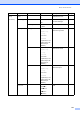
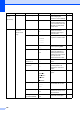
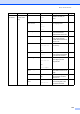
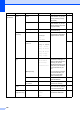
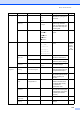
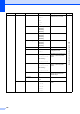
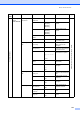
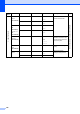
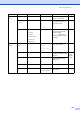
Table Of Contents
- USER’S GUIDE MFC-8460N/MFC-8860DN
- Approval Information and Compilation and Publication Notice
- Table of Contents
- Section I : General
- 1 General information
- Using the documentation
- Accessing the complete User’s Guide
- Viewing documentation
- Viewing documentation (Windows®)
- How to find Scanning instructions
- Software User's Guide:
- PaperPort® User's Guide:
- How to find Internet FAX instructions (MFC-8860DN only)
- Viewing Documentation (Macintosh®)
- How to find Scanning instructions
- Software User's Guide:
- Presto!® PageManager® User's Guide:
- How to find Internet FAX instructions (MFC-8860DN only)
- Viewing documentation
- Control panel overview
- 2 Loading documents and paper
- 3 General setup
- 4 Security features
- 1 General information
- Section II : Fax
- 5 Sending a fax
- How to fax
- Broadcasting
- Additional sending operations
- 6 Receiving a fax
- 7 Phone and external devices
- 8 Dialling and storing numbers
- 9 Remote fax options
- 10 Printing reports
- 11 Polling
- 5 Sending a fax
- Section III : Copy
- Section IV : Software
- Section V : Appendices
- A : Safety and Legal
- B : Options
- C : Troubleshooting and routine maintenance
- D : Menu and Features
- E : Specifications E
- F : Glossary
- Index
- brother IND

Menu and Features
137
Main
Menu
Submenu Menu Selections Options Descriptions Page
6.LAN (Continued)
3.Setup
IFAX
(
MFC-8860DN
)
1.Setup
Internet
1.Mail
address
—
Enter the mail address.
See Network User’s Guide on the CD-ROM.
2.SMTP Server [000-255].
[000-255].
[000-255].
[000-255]
Enter the SMTP server
address.
3.POP3 Server [000-255].
[000-255].
[000-255].
[000-255]
Enter the POP3 server
address.
4.Mailbox
Name
—
Enter the mail box name.
5.Mailbox Pwd —
Enter the password to login
to the POP3 server.
2.Setup Mail
RX
1.Auto
Polling
On*
Off
Automatically checks the
POP3 server for new
messages.
2.Poll
Frequency
10 MIN
Sets the interval for
checking for new messages
on the POP3 server.
3.Header All
Subject+From+
To
None*
Selects the contents of the
mail header to be printed.
4.Del Error
Mail
On*
Off
Deletes error mails
automatically.
5.
Notification
On
MDN
Off*
Receives notification
messages.
3.Setup Mail
TX
1.Sender
Subject
—
Displays the subject that is
attached to the Internet Fax
data.
2.Size Limit On
Off*
Limits the size of E-mail
documents.
3.
Notification
On
Off*
Sends notification
messages.
4.Setup Relay 1.Rly
Broadcast
On
Off*
Relays a document to
another fax machine.
2.Relay
Domain
RelayXX:
Registers the Domain
name.
3.Relay
Report
On
Off*
Prints the Relay Broadcast
Report.